Azure Restore
Datto Backup for Microsoft Azure: Azure Files & Azure Blob Storage allows for the restoration of a protected asset directly from the dashboard.
Environment 
- Datto Backup for Microsoft Azure: Azure Files
- Datto Backup for Microsoft Azure: Azure Blob Storage
Description
If a full asset restoration is needed because of an issue on the protected resource, follow the process outlined below.
Starting the restore 
Restore process initiation will be limited to assets that share an organization with the user account.
-
Log into the UniView platform.
 Starting the restore from the Dashboard
-
From the left-hand menu, select Dashboard under Datto Backup Portal.
-
Navigate to the asset that needs to be restored, either by searching for the name, filtering by organization, or scrolling to it.
-
Take note of the Last 30 Days Backup column to determine the recent options to restore from.
-
Select the three-dot menu on the right hand side, then select Restore from the menu to open the restore wizard.
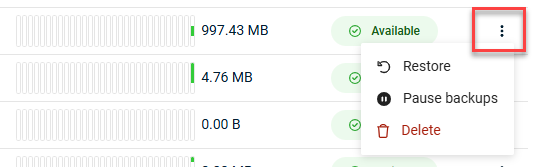
If there are no recovery points available for the asset to restore from, the restore option will be unavailable.
Starting the restore from the Recovery Operations page
-
From the left-hand menu, select Recovery Operations under Datto Backup Portal.
-
Select + Restore from the upper-right of the page. If you have both Datto Endpoint Backup v2 and Datto Backup for Microsoft Azure, select Microsoft Azure from the drop-down menu. Otherwise the restore wizard will open directly.
-
From the Asset Selection page, select the asset to restore, then Next to proceed.
-
-
From the Data Selection page, select the date from the calendar selection menu.
-
Select the backup from the Time drop down menu.
-
Select the specific files and folders to restore using the check boxes and the files tree. Everything in the snapshot is included by default.
-
Select Next to proceed to the Destination page.
-
Select whether to restore the asset to the original File Share or Blob container, or to a alternative location using the toggle under Destination. For more information on each of these locations and the configurations available, expand the selected option below.
Original
The original asset's location is displayed and the snapshot contents will be restored to this original location. Files and folders that exist in both the snapshot and the original Azure file share will be handled according to the Restore Path option selected. Select the Restore Path from the following options:
Restore as New Prefix: Create a new folder in the original file share or Blob storage container for the restored snapshot files. The path of the folder that will be created is provided in this window.
Restore in Place: This option restores the files directly to the original file share or Blob storage container. Select the option for how to handle version conflicts (when a file is attempted to be written to a location where a file of the same name exists).
- Keep Both Versions: Save the restored file with a snapshot timestamp suffixed to its name.
- Skip: Only restore missing files and folders.
- Overwrite Existing: Replace the current file/blob with the restored version. This is the most destructive option as it overwrites files in the existing share or container.
The Overwrite Existing option will create a Safety Snapshot during the operation for Azure File Shares. For more information on Safety Snapshots and restoring from them, refer to the Safety Snapshot section below.
Alternate
When restoring to an alternate location from the protected resource, use the drop down menus from the Restore Destination section to set the new location to restore to. The folder name for the restored files is provided, but is not adjustable.
NOTE If the destination selected is the same as the original path, you will be prompted to confirm before proceeding. The restore will be placed in a new folder so no data will be overwritten. If you would like to directly overwrite the resource's data, use the Original option in the destination toggle.
-
When restoring Azure File Share assets, under Permissions & Metadata, use the check-box to confirm if you would like the snapshot's File/Folder permissions and metadata to be applied to the restore.
When this option is selected, the system restores the following properties in addition to the file content for Azure File Share assets.
- File Attributes: file flags such as Read-Only, Hidden, Archive, and System.
- Creation Time: the file creation timestamp as recorded by Azure.
- Windows ACLs: the full access control list defining who can read, write, or execute files and directories. When restoring to an alternate destination, Windows ACLs might not be applicable if the destination is joined to a different Active Directory (AD) domain or has no AD domain services configured.
-
Click Next to proceed to the confirmation page.
-
Review the selections on the Confirm page and click Confirm & Restore to begin the restore operation.
NOTE When restoring to an Azure tenant if a storage account is not accessible, the restore will not be able to proceed. For information on troubleshooting this issue, refer to the steps outlined here: Inaccessible storage account .
Canceling the restore
If a restore is started inadvertently, or is no longer needed after it was already started, it may be canceled by and Admin or Superuser. This process will not revert files that were already copied over and will leave it in a partially restored state. It is recommended to review the state of the destination after the restore is canceled.
To cancel an ongoing restore:
-
From the left-hand menu, select Recovery Operations under Datto Backup Portal.
-
Navigate to the restore that is in progress, either by searching, filtering, or scrolling to it.
-
Select Cancel for the in progress restore.
-
Confirm the action when prompted. The restore will be canceled immediately upon confirmation.
Safety Snapshot
When Overwrite Existing is selected as the option for handling version conflicts, the system automatically creates a safety snapshot of the file share before the operation runs. This snapshot captures the full state of the share at that point in time and can be used to recover data if needed after the overwrite completes.
The safety snapshot is currently only available for Azure File Restores, not Azure Blob Storage.
Locating the Safety Snapshot
-
Log into your Azure Portal.
-
Navigate to your Storage Account.
-
Select File shares, then the file share that the restore was completed for.
-
Open the Snapshots tab. The Safety Snapshot will be listed.
NOTE In future releases, safety snapshots will include metadata that identifies them as being created by a restore operation.
Restore Options
The following commonly used methods are available to restore data from the safety snapshot. Additional methods including Azure PowerShell, Azure CLI, and REST API are available in the Azure documentation.
| Method | Scope | Best used for |
|---|---|---|
| Portal | Files / Folders | Restore individual items |
| SMB | Full share | Full restore, including permissions |
| Storage Explorer | Full / Partial | Bulk restore via UI |
| AzCopy | Full share | Scripted or automated restore |
For a full list of restore methods of the Safety Snapshot, see Use Azure Files share snapshots (external link) on Microsoft Learn.
Portal Restore
To restore files from a snapshot, sign in to the Azure portal and follow these steps.
-
Log into your Azure Portal.
-
Navigate to your file share.
-
On your file share, select Snapshots.
-
From the file share snapshot tab, right-click on the file you want to restore, and select Restore.
-
Select Overwrite original file and then select OK.
Microsoft Documentation: Use share snapshots with Azure Files (external link).
SMB Restore
Requires a Windows system with SMB access to the share.
-
Mount the Azure File Share using SMB on a Windows machine.
-
Open File Explorer and navigate to the mounted share.
-
Right-click the share or folder, then select Properties.
-
Go to the Previous Versions tab.
-
Select the Safety Snapshot and click Restore.
Microsoft Documentation: Mount SMB Azure file share on Windows (external link).
Storage Explorer Restore
Use Azure Storage Explorer for a GUI-based bulk restore.
-
Open Azure Storage Explorer and connect to your storage account.
-
Navigate to the file share.
-
Open the Snapshots section and select the Safety Snapshot.
-
Select all items or the needed item(s).
-
Copy the selected items to the live file share.
Microsoft Documentation: Get started with Storage Explorer (external link).
AzCopy restore
Use AzCopy to restore the full share from the command line.
Microsoft Documentation: Transfer data with AzCopy and file storage (external link).
Deleting the safety snapshot
The safety snapshot is not deleted automatically. Once the restore is complete and the file share is in the expected state, you can delete the snapshot manually from the Azure portal.
-
Locate the Safety Snapshot, as described above.
-
Select the snapshot and click Delete.
-
Confirm the deletion when prompted.
NOTE Only delete the snapshot after the restore has been verified as complete and correct. Once deleted, the snapshot cannot be recovered.


