Setting up an organization
Organizations give you control over groups of assets and users across UniView products. Organizations can be imported using one of the integrations available with UniView or may be created manually, directly within UniView. For full UniView documentation on organizations, refer to Using organizations.
Environment 
- Datto Endpoint Backup v2
- Datto Backup for Microsoft Azure: Azure Files
- Datto Backup for Microsoft Azure: Azure Blob Storage
Importing an organization
To import an organization, the integration first needs to be enabled. Follow the provided steps for enabling an integration based on the product that you would like to integrate with.
Then, use the following steps to import an organization:
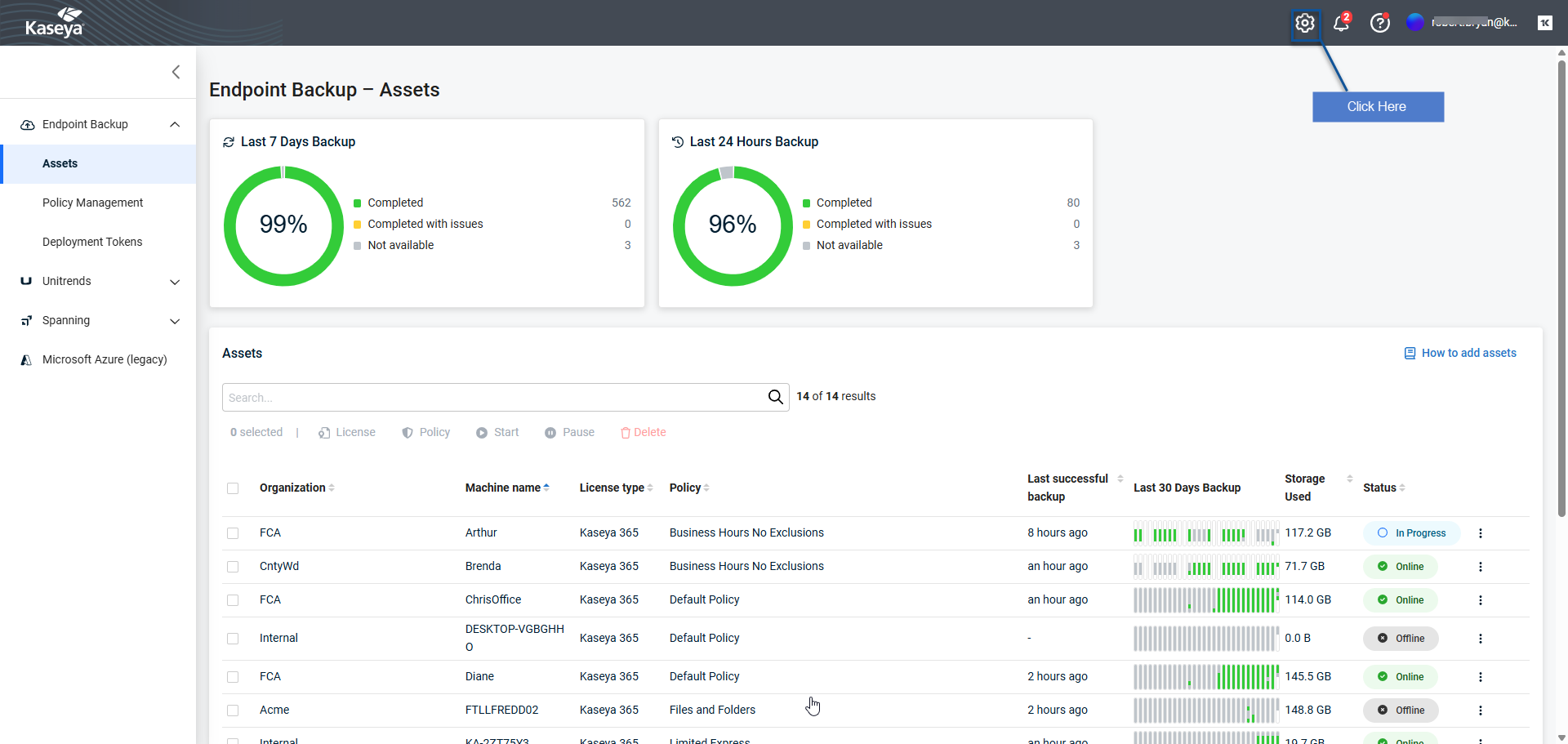
Click the settings icon in the upper-right corner of the portal.
Navigate to the Organizations tab.
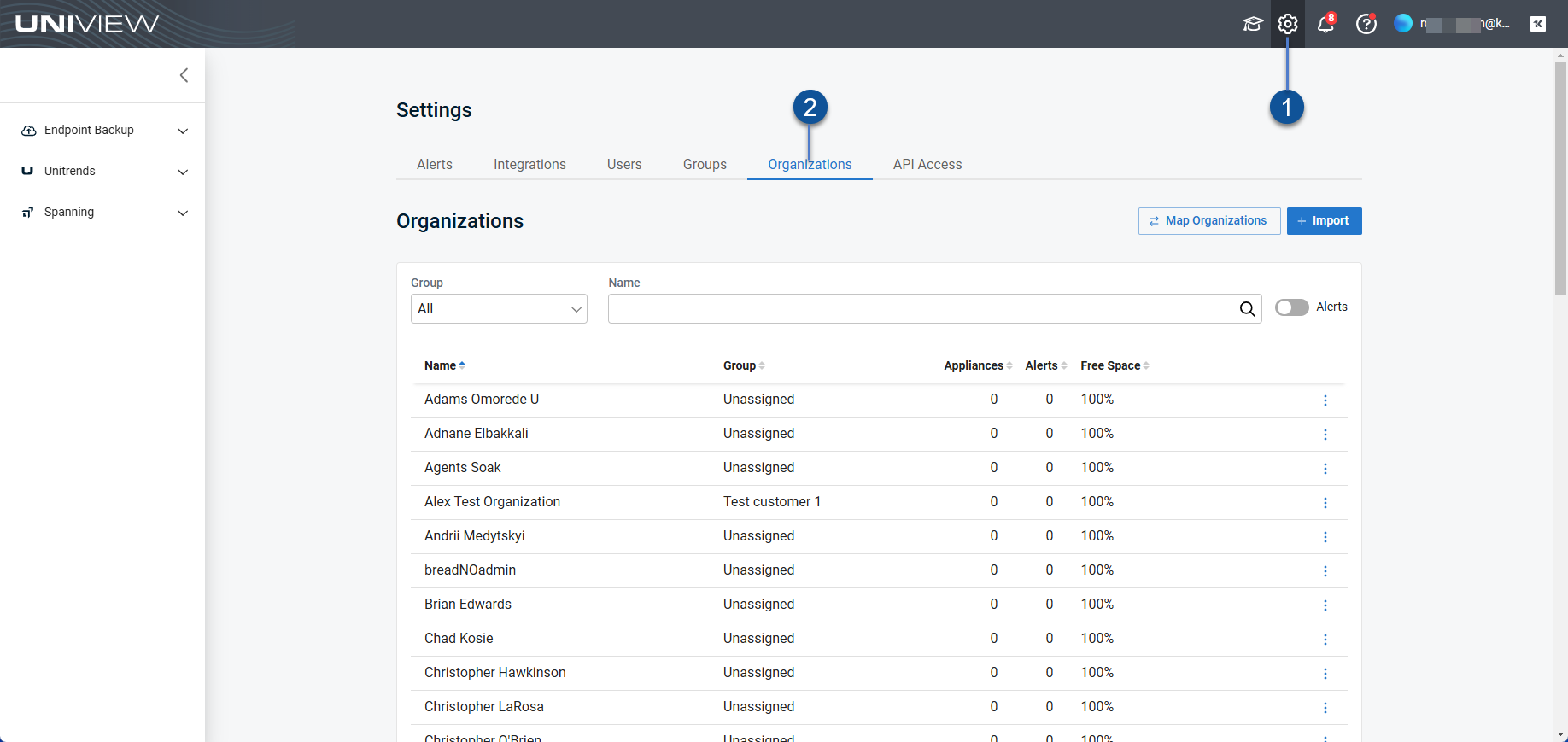
Click Import.
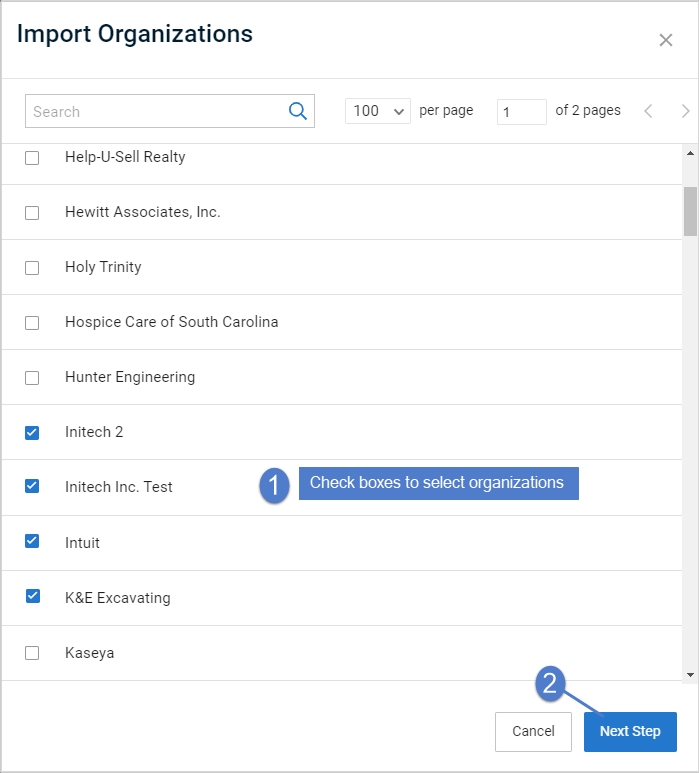
Select organizations to import.
Click Next Step.
Choose a group for your organization.
Click Save.
Manually create an organization
If the integrations are unavailable or organizations are not already in use with the compatible products, an organization may be created manually within UniView. Follow the process to create a new organization.
Click on the settings cog as shown below.
Navigate to the Organizations tab.
Click + New.
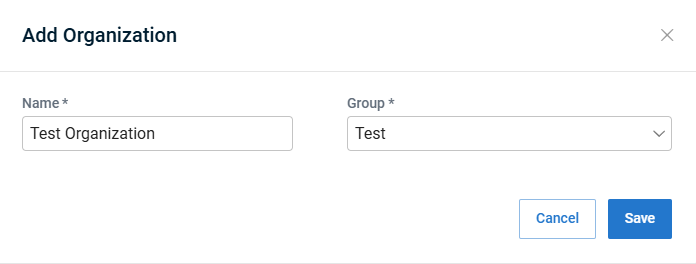
Enter a Name and select a Group for your organization.
Click Save.


