Entra export
NAVIGATION https://login.backup.net/login (UniView) > Action menu
PERMISSIONS Superusers and admins can export data.
Entra export lets you extract your data to help with compliance, audits, migrations, and offline analysis.
How to export
To export your data, complete the following steps:
- Navigate to https://login.backup.net/login to log in to the Datto Backup Portal as a superuser or admin.
- Click SaaS Backup on the left navigation panel to see your Entra backups.
- Click the More menu at the right edge of the domain you want to export.
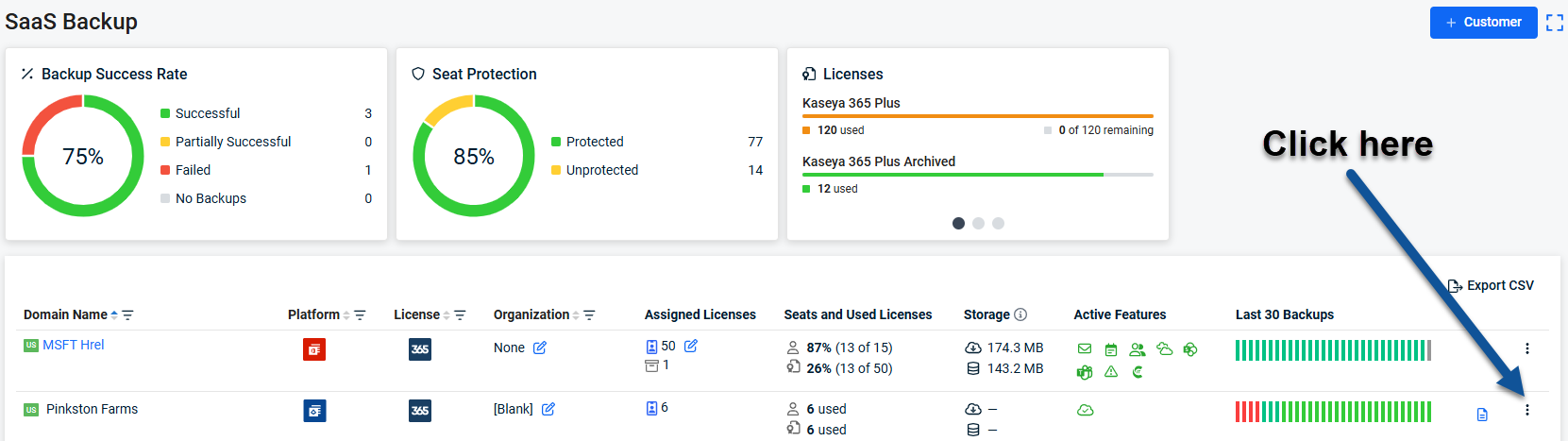
- Select Export from the drop-down menu.
- Choose the date and time of the backup to export.
The export contains data from the closest backup on or before the date and time you select. - All of these available object types are selected by default.
Clear the check boxes for any types to exclude them from your export.- Users
- Groups
- Directory Roles
- Devices
- Service Principals
- Organizational Contacts
- Administrative Units
- Role Assignments
- Applications
- Authentication Methods Policies
- Click Export.
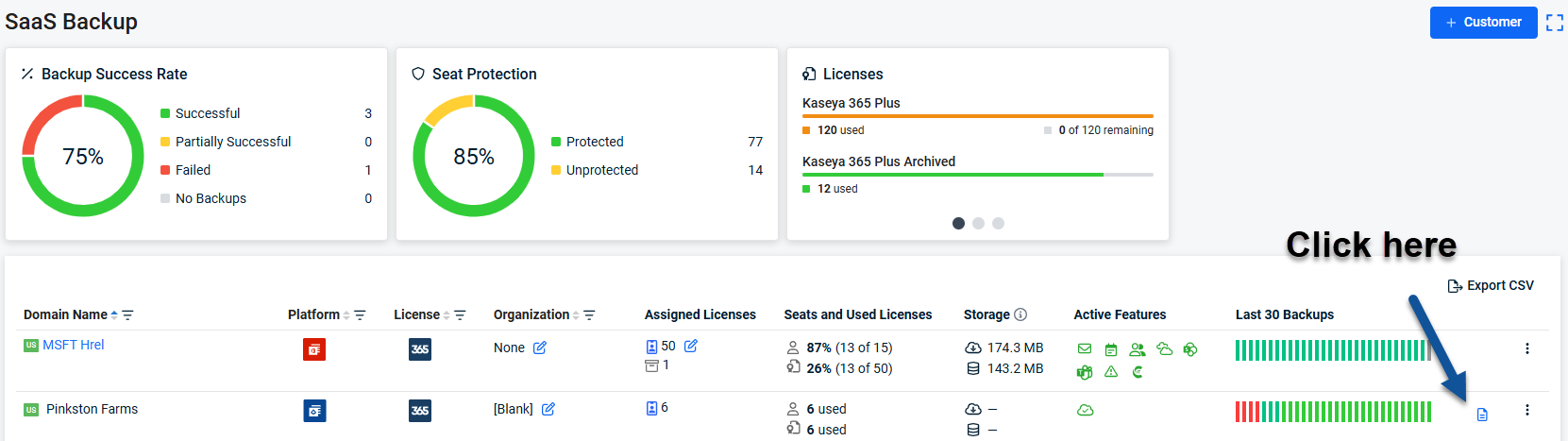
A message confirms that your export has started. - Click Restore statistics to see the state of your export.
- When your export is complete, click the expand icon to the right of your export.
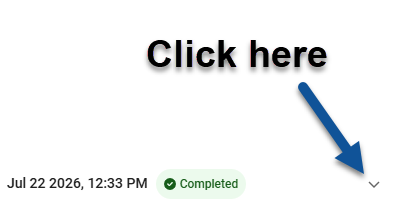
- Click Download file.
The browser downloads your export.


