Re-Registering VSS DLL Binaries in 32-bit and 64-bit Environments
This article contains methods to re-register VSS DLL binaries. Conflicting VSS-aware applications running on the protected machine is a common cause of backup errors. Remove VSS-aware processes that are still present, including scheduled shadow copies in the OS. This ensures further long term stability and reliability. For a general overview of VSS and troubleshooting, see VSS: Description, Compatibilities, and Troubleshooting Resources.
Environment 
- Datto SIRIS
- Datto ALTO
Description
If the command vssadmin list writers does not produce an output, the commands in this article can help to re-register the VSS Service's associated DLL binaries. Performing these steps can help reduce recurring VSS writer failures.
Determine the OS version that is being investigated
- From the Windows desktop, right-click on My Computer, and then click Properties.
- On most operating systems, you can find the My Computer icon on the Start Menu. Depending on your OS version, the icon might be listed as Computer or This PC.
- You can also open a Windows Explorer window, and find the icon on the left-hand pane.
- On the Properties menu, find the entries for Windows Edition and System Type. Make sure that they are compatible with the prerequisites outlined in this article.
- If the host machine is running a compatible operating system, follow the steps in section 3.1 (for 64-bit systems) or section 3.2 (for 32-bit systems).
IMPORTANT These steps only pertain to Windows Server 2008 Standard, Windows Server 2008R2, Windows Server 2003 and below. Attempting these fixes on Windows Vista or higher could cause operating system damage.
For modern Windows systems VSS troubleshooting is often tied to the associated service of the writer, such as SQL or Exchange opposed to directly re-registering the binaries. Repairing the installation of these services can assist in fixing the health of the associated writer. If the system writer or many VSS writers are unhealthy then overall health should be addressed. For more information refer to VSS: Description, Compatibilities, and Troubleshooting Resources.
 64-Bit Version
To re-register VSS binaries and services on 64-bit systems, copy the following code into a file, and name it FIXVSS64.bat. Run it with administrative privileges.
rem FILENAME: FIXVSS08.BAT
rem
net stop "System Event Notification Service"
net stop "Background Intelligent Transfer Service"
net stop "COM+ Event System"
net stop "Microsoft Software Shadow Copy Provider"
net stop "Volume Shadow Copy"
cd /d %windir%\system32
net stop vss
net stop swprv
regsvr32 /s ATL.DLL
regsvr32 /s comsvcs.DLL
regsvr32 /s credui.DLL
regsvr32 /s CRYPTNET.DLL
regsvr32 /s CRYPTUI.DLL
regsvr32 /s dhcpqec.DLL
regsvr32 /s dssenh.DLL
regsvr32 /s eapqec.DLL
regsvr32 /s esscli.DLL
regsvr32 /s FastProx.DLL
regsvr32 /s FirewallAPI.DLL
regsvr32 /s kmsvc.DLL
regsvr32 /s lsmproxy.DLL
regsvr32 /s MSCTF.DLL
regsvr32 /s msi.DLL
regsvr32 /s msxml3.DLL
regsvr32 /s ncprov.DLL
regsvr32 /s ole32.DLL
regsvr32 /s OLEACC.DLL
regsvr32 /s OLEAUT32.DLL
regsvr32 /s PROPSYS.DLL
regsvr32 /s QAgent.DLL
regsvr32 /s qagentrt.DLL
regsvr32 /s QUtil.DLL
regsvr32 /s raschap.DLL
regsvr32 /s RASQEC.DLL
regsvr32 /s rastls.DLL
regsvr32 /s repdrvfs.DLL
regsvr32 /s RPCRT4.DLL
regsvr32 /s rsaenh.DLL
regsvr32 /s SHELL32.DLL
regsvr32 /s shsvcs.DLL
regsvr32 /s /i swprv.DLL
regsvr32 /s tschannel.DLL
regsvr32 /s USERENV.DLL
regsvr32 /s vss_ps.DLL
regsvr32 /s wbemcons.DLL
regsvr32 /s wbemcore.DLL
regsvr32 /s wbemess.DLL
regsvr32 /s wbemsvc.DLL
regsvr32 /s WINHTTP.DLL
regsvr32 /s WINTRUST.DLL
regsvr32 /s wmiprvsd.DLL
regsvr32 /s wmisvc.DLL
regsvr32 /s wmiutils.DLL
regsvr32 /s wuaueng.DLL
sfc /SCANFILE=%windir%\system32\catsrv.DLL
sfc /SCANFILE=%windir%\system32\catsrvut.DLL
sfc /SCANFILE=%windir%\system32\CLBCatQ.DLL
net start "COM+ Event System"
NOTE In certain cases, it is normal for the msxml commands to not install, or fail to register. The eventcls and es commands fail to register on Vista and newer systems. The vssui command only applies to Windows Server 2003 and Windows Server 2008.
32-Bit VersionTo re-register VSS binaries and services on 32-bit systems, copy the following code into a file, and name it FIXVSS32.bat. Run it with administrative privileges.
cd /d %windir%\system32
net stop vss
net stop swprv
regsvr32 ole32.dll
regsvr32 oleaut32.dll
regsvr32 /i eventcls.dll
regsvr32 vss_ps.dll
vssvc /register
regsvr32 /i swprv.dll
regsvr32 es.dll
regsvr32 stdprov.dll
regsvr32 vssui.dll
regsvr32 msxml.dll
regsvr32 msxml3.dll
regsvr32 msxml4.dll
net start vss
net start swprv
NOTE In certain cases, it is normal for the msxml commands to not install, or fail to register. The eventcls and es commands fail to register on Vista and newer systems. The vssui command only applies to Windows Server 2003 and Windows Server 2008.
Test VSS with the Microsoft VShadow tool
NOTE Reboot the production machine if you have trouble testing the VSS writers with the VShadow tool.
Download the VShadow tool for your OS:
- Windows 2000 - Unsupported; Windows 2000 does not have VSS
- Windows XP 32 Bit
- Windows XP 64 Bit
- Windows Server 2003 32 Bit & 64 Bit
- Windows Vista 32 Bit
- Windows Vista 64 Bit
- Windows Server 2008 32 Bit
- Windows Server 2008 64 Bit
- Windows 7 32 Bit
- Windows 7 64 Bit
- Windows Server 2008 r2 32 Bit
- Windows Server 2008 r2 64 Bit
Download
VShadow.exeto%windir%\system32\Before running VShadow, stop any VSS-related services that are running. Also, stop the following services, and set them to Automatic Startup in
services.msc:- Background Intelligent Transfer Service
- Hyper-V Volume Shadow Copy Requestor
- Microsoft Software Shadow Copy Provider
- MS Software Shadow Copy Provider
- SQL Server VSS Writer
- Volume Shadow Copy
Open a command prompt with administrative privileges.
Attempt to take a shadow copy of each system volume by using the VShadow tool. The syntax for this command is as follows:
vshadow VolumeList. Replace VolumeList with the drive letters of the hard disks attached to the system, as shown in Figure 1. Do not include removable media drives.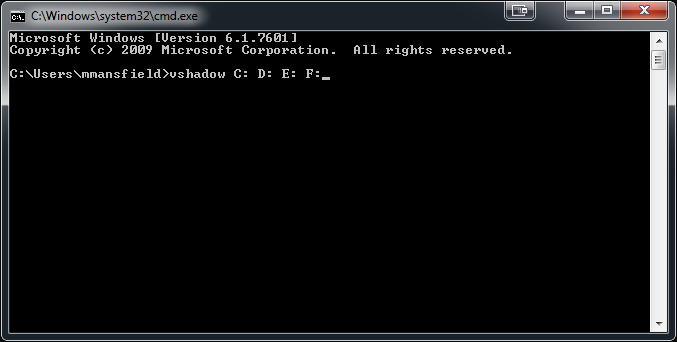
If the VShadow tool fails to take a shadow copy, reboot the production system.


