VHD/VHDX Image Export not booting
This article discusses the use of VHD and VHDx virtual disks on Datto devices in disaster recovery situations, as well as troubleshooting for virtual disk boot issues.
Environment 
- Datto ALTO
- Datto SIRIS
Description
Choosing a virtual disk format 
NOTE Microsoft recommends using a Generation 2 format when possible. Data volumes greater than 2TB must use the VHDX file format. If you are unsure whether to create a VHD or VHDX Image Export, see this Microsoft article (external link).
Hyper -V supports 64-bit versions of Windows 8, Server 2012, and later as both Hyper-V Generation 1 and Generation 2 guests. You can use them to restore from a Gen 1 virtual machine with a VHD format if desired.
- Gen 2 restores to Server 2012 (or later) hypervisors require the VHDX disk format.
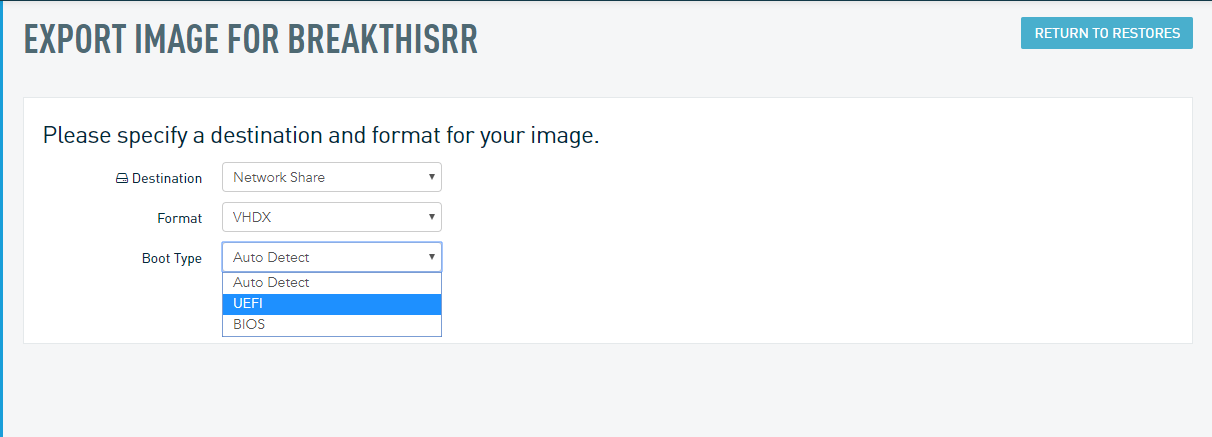
- Make sure you select the UEFI boot type in the Datto Image Export wizard.
The following operating systems require a Generation 1 VM with VHD disk format:
- Windows 7
- Windows Server 2008 and Server 2008 R2
- All 32-bit versions of Windows
NOTE Windows Server 2000 and 2003 are not supported by Microsoft for use in Server 2012/2012R2/2016 and require an older hypervisor.
Maximum volume sizes
- VHD: 2040 GB
- VHDX: 65536 GB
Mounting a VHD file in Windows 10
To copy VHD contents to a new thin-provisioned VHD, or to verify a VHD's integrity before copying it over:
- Open Disk Management.
- Click Action, then select Attach VHD
- Navigate to the VHD file's location.
Troubleshooting Hyper-V boot errors
 Error: No x64 UEFI boot loader was found or Error: Boot Failed
 Common causes:
- C.vhdx is not attached to VM template
- C.vhdx is not set up as a boot option in VM boot settings
Possible resolutions:
- Use another copy of a C.vhdx from a new Image Export restore of the same server
- Reformat the Boot Partition as FAT32
- Download the datto-utilites.iso.
- Attach this .iso to your VM and boot from it. Work with support to run HIR.
- If the above steps do not resolve the issue, try to mount the C.vhdx file to ensure it is valid. The volume should have an EFI directory and corresponding files.
The VHD file is now mounted. You can browse, open, and copy files as you would any external drive connected to your PC.
Error: Boot Failed EFI SCSI Device. Failed Secure Boot Verification 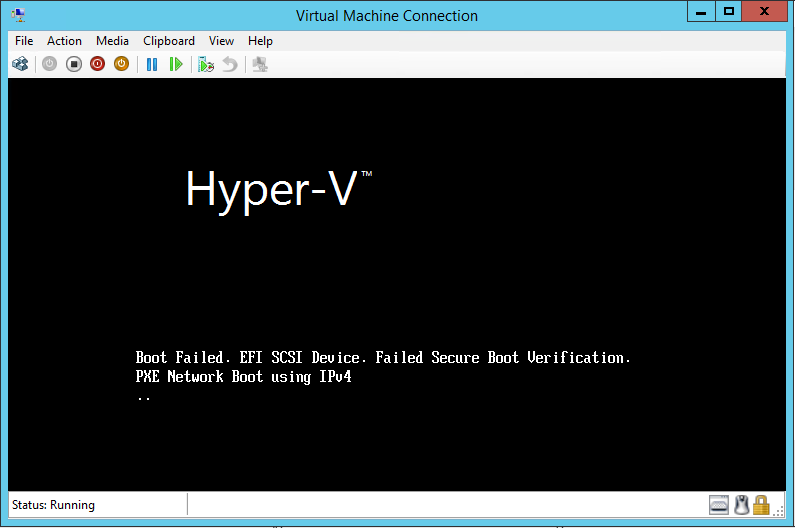
Common cause:
Secure boot does not support this OS type (Secure Boot does not support this OS version as a Generation 2 virtual machine).
Resolution:
Re-run the export as a VHD, then copy the new boot.datto file and OS volume to a Generation 1 VM.
Error: No UEFI-Compatible file system was found
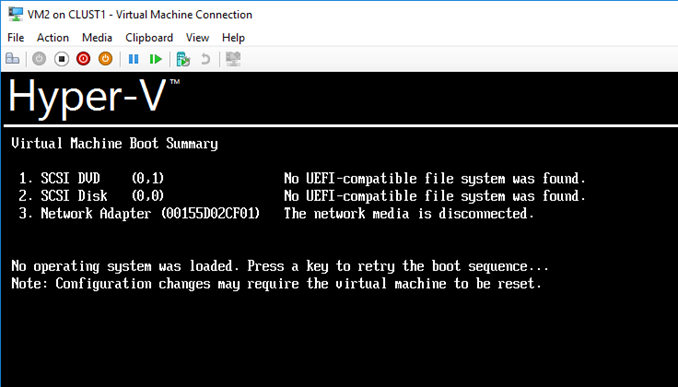
Common causes:
- Boot file attached to incompatible Generation 2 VM template
- Export was done as a Boot Type: BIOS
Possible resolutions:
- Use a Generation 1 VM template.
- If the guest OS is supported by Generation 2, export new UEFI images. You can do this by performing a new image export from the Datto device and ensuring that UEFI is selected as the boot type (see Figure 1 above). You need only copy the C.vhdx from the new export.
- Convert the images to Generation 2.
Blue screen Inaccessible boot device /Blue screen Stop 0x0000007b 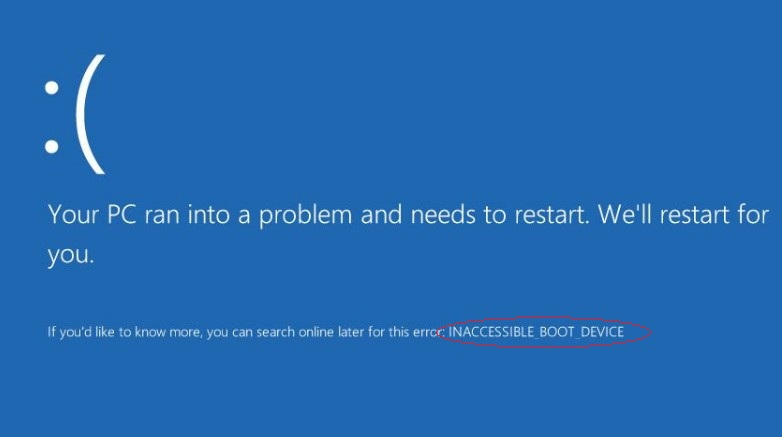
Common causes:
- Different storage controller information on the disk than what is usable on the Hyper V server
- Invalid BCD configuration
- Virtual disk errors
- HIR failure
Refer to INACCESSIBLE BOOT DEVICE or 0x0000007B STOP error after Image Export for common resolution steps.
Additional resources
- Should I create a Generation 1 or 2 virtual machine in Hyper-V? (external article)
- Hyper-V Generation 2 VM conversion utility(external article)


