Microsoft Azure – Policy Management
This article provides an overview of the Microsoft Azure – Policy Management page, which is used to manage the policies used for Datto Backup for Microsoft Azure: Azure Files & Azure Blob Storage.
Environment 
- Datto Backup for Microsoft Azure: Azure Files
- Datto Backup for Microsoft Azure: Azure Blob Storage
Description
The Policy Management page is used to review the current Policies for Datto Backup for Microsoft Azure: Azure Files & Azure Blob Storage. Existing policies may be edited or removed, as well as new policies may be created from this page.
A policy is used to determine the backup and retention period for a tenant associated with it. It also allows you to set the threshold for time without a successful backup before an alert is sent.
Navigation 
-
Log into the UniView portal using your UniView or KaseyaOne credentials.
-
In the left-hand menu, expand Microsoft Azure.
-
Select Policy Management to open the page.
Page overview
Previously created policies are listed with columns to provide information about the policy. The search bar at the top can be used to navigate quickly to specific policies. 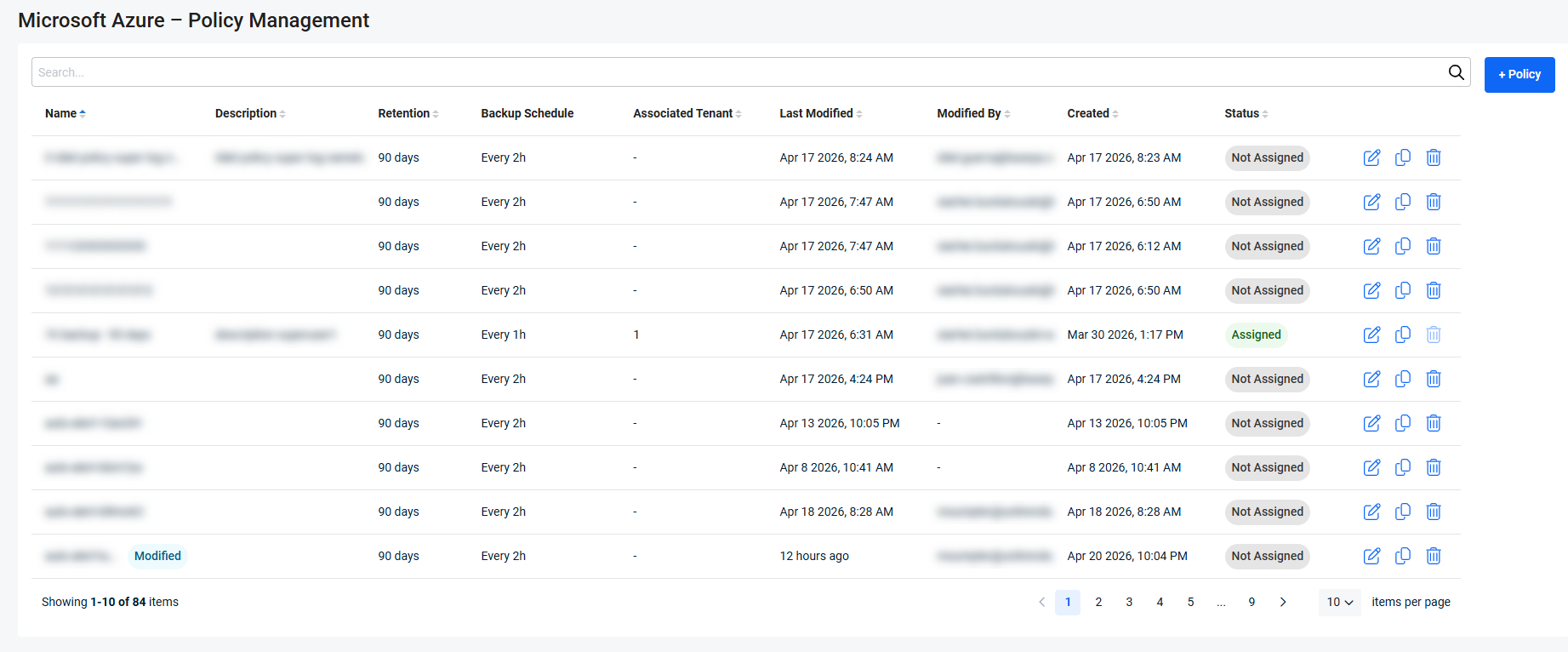
 Name
Name
The given name of the policy. Hovering over this section will show a popup with the full description, if the complete value is not displayed by default.
Description
Space given for a description of the policy is set when it was created. Hovering over this section will show a popup with the full description, if the complete value is not displayed by default.
Retention
The retention period of the policy. It can be set to any of the following:
- 90 days
- 1 year
- 3 years
- 7 years
Backup Schedule
Displays the selected backup schedule. This can be representative of any of the options selected for the policy:
-
Continuous Interval: will start a backup based on the preset interval, selected in the drop-down. This will display as Every [selected]h, with it being the set interval in hours.
-
Business Hours: Backups will occur at a 2-hour interval, Monday - Friday, between 8 am and 6 pm (local time).
-
Custom Schedule: A granular backup schedule that is set for the policy. This value will display a description of the times the backup has been selected to be taken.
Associated Tenant
A list of the Azure tenants that are currently using the policy. If none are associated, it will display a dash.
Last Modified
Displays when the policy was last changed. This will display a relative time if done so recently (ex. 2 minutes ago), but you may hover the value to display the exact date and time.
Modified By
The user account that last changed the policy.
Created
The date and time at which the policy was created.
Status
Displays the status of the policy, whether it is Assigned to one or more Tenants, or if it is Not Assigned. If it is assigned, selecting the policy will open the Edit Policy drawer. Within this drawer, the Associated tenant(s) are listed. If a tenant is selected, it will open the Microsoft Azure – Tenants page, with the search filter bar populated with the tenant's name.
Additionally, the following options are available on the right-hand side of the policy:
-
Edit: Allows you to change anything about the backup or retention schedule set on creation. This can also be accessed by clicking on the row of the policy. This opens a drawer with the same options available as during the initial creation of the policy.
-
Duplicate: This allows you to create a new policy using the selected policy to fill out all the fields by default. Any fields may be changed if needed, before the creation completes.
-
Delete: Will remove the policy; this option will not work while an Azure tenant is associated with it.
Create new policy
To create a new policy, select + Policy in the upper right of the page. This will open the Add New Policy drawer. For information on creating a new policy and the options available, please refer to: Add a new policy.


