UniView - Datto Backup Portal - Dashboard
On the Dashboard Page within UniView you can see all of the protected assets, their policies, and recent backup information across Datto Endpoint Backup v2 and Datto Backup for Microsoft Azure: Azure Files & Azure Blob Storage. The Dashboard also allows you to view assets, statuses, and create restores, all from the same window.
Environment 
- Datto Backup for Microsoft Azure: Azure Files
- Datto Backup for Microsoft Azure: Azure Blob Storage
- Datto Endpoint Backup v2
Description
The Datto Backup Portal - Dashboard is divided into two sections, overview tiles at the top of the page and a list of all the protected assets from Datto Endpoint Backup v2 and Datto Backup for Microsoft Azure: Azure Files & Azure Blob Storage.
Tiles
These tiles provide an overview of protected assets. 
Recent Backup Status
-
Provides the total number of assets and groups them by when their last backup took place. It also provides the information as a pie chart to easily see what percentage of assets have backed up in a specific period.
Last 24 Hours Backup
-
A simpler version of the Recent Backup Status, it provides the percentage of assets that have completed a backup in the last day.
Storage Usage
-
For each license type: it provides the size of the storage pool provisioned for the backups, and how much is utilized. It also displays whether the pool is over utilized or the amount currently free. If a second page is required to display all the information, select the dots at the bottom of the tile to navigate between the pages.
Licenses
-
Groups the licenses allocated by type and shows how many are in use or how many are available.
NOTE This will be hidden for users that only have Datto Backup for Microsoft Azure: Azure Files.
Asset List
All protected assets are listed in this section. To find a specific asset, they can be sorted by any of the columns or filtered by a keyword, backup type, or organization.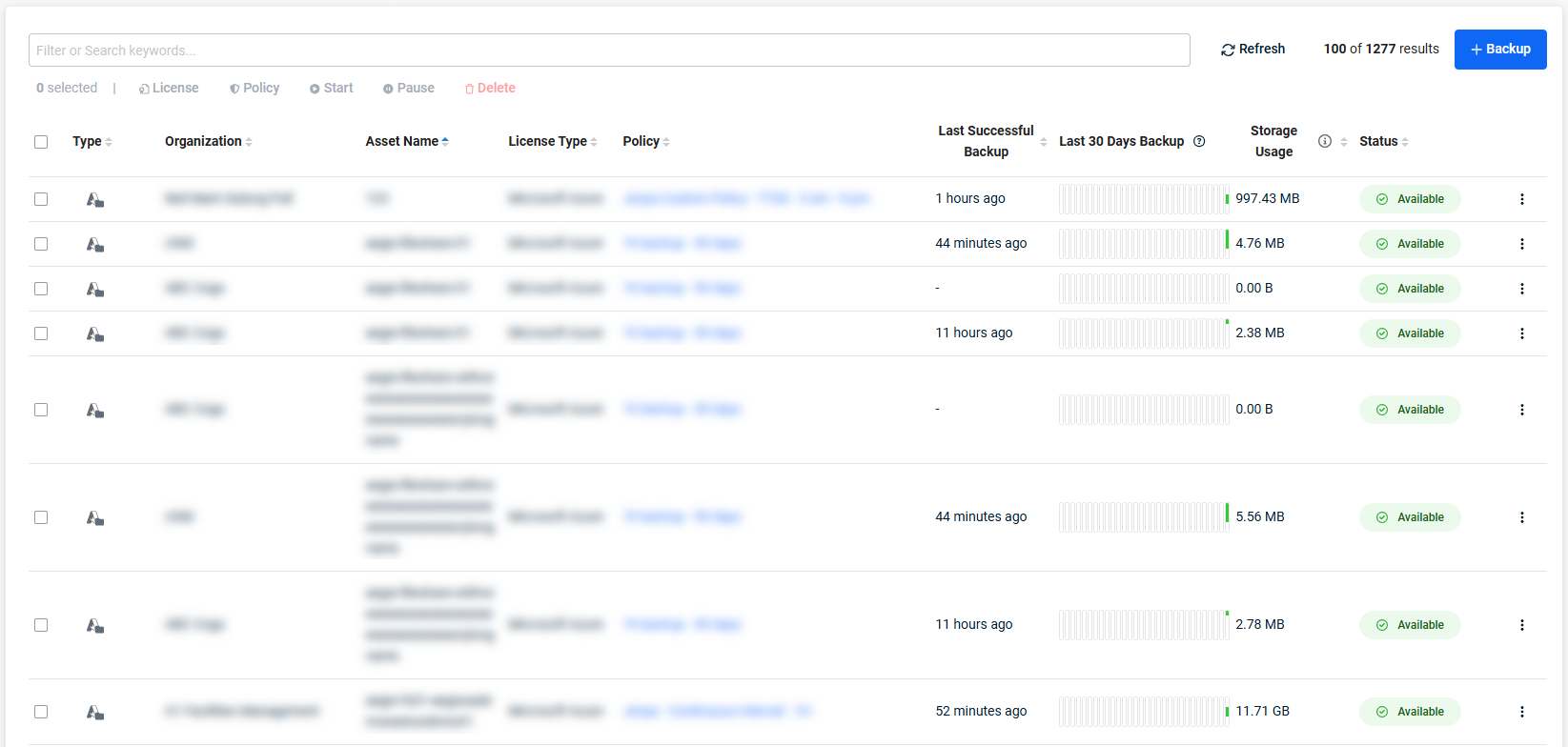
Filter / Search bar
Selecting the search bar field will open the filter window, where you can select specific asset type or organization to filter by. Begin typing to search for an asset by name.
In the top right of the table, one of three icons will be displayed, depending on if you are a Datto Endpoint Backup v2 user, Datto Backup for Microsoft Azure: Azure Files & Azure Blob Storage user, or both.
-
How Add Assets: Instructs you how to add a new endpoint for the Datto Endpoint Backup v2 product.
-
+ Azure Tenant: Launches the onboarding wizard for the Datto Backup for Microsoft Azure: Azure Files & Azure Blob Storage product.
-
+ Backup: For users with both products, this option will open a menu to select one of the above options.
Columns
Each of the columns displays information about the asset and can be used to sort the list by selecting the column name.
| Column | Description |
|---|---|
| Type | The asset's backup type. |
| Organization | The organization that the asset belongs to. |
| Asset Name | The full name of the asset. |
| License Type | The license type that is associated with the asset. |
| Policy | The backup policy the asset follows. Selecting the policy will take you to the policy page to view/edit the backup policy. Note, this applies to all assets using that backup policy. |
| Last Successful Backup | The amount of time since the last successful backup took place for the asset. Hovering the value will provide the date and time of the backup. A dash (-) will be present for assets that have not completed a backup. |
| Last 30 Days Backup |
Shows a graphical representation of the backups over the last 30 days. Hover each of the bars for more information on backups that took place and times when the resource was unavailable for backup. |
| Storage Usage | The amount of storage used by the backups of the asset. This is the value counted to the license's quota. |
| Status | The current state of the asset. A list of each state available, with a description, is provided for each product below. |
 Datto Endpoint Backup v2
-
Online: The endpoint is available for a backup.
-
Offline: The endpoint is currently not reachable.
-
In Progress: Shows that a backup or restore is running. Hover the icon for more information, including what type of operation is currently taking place.
-
Paused: The backups have been paused for the endpoint.
Datto Backup for Microsoft Azure: Azure Files & Azure Blob Storage
-
Available: The default state for an asset that is included for protection.
-
In Progress: The asset is in the process of completing a restore or a backup. Hover the icon for more information, including what type of operation is currently taking place.
-
Paused: Assets that have backups paused.
-
Unavailable: The resource was removed from the Azure tenant.
-
Unprotected: The asset was being protected but was removed from protection by modification of the tenant's settings. No new backups will be taken for this asset, but current backups are still available for use with recovery. Hover this status to view the date it became unprotected and the retention date, when the snapshots for the asset will be removed.
Use the selection box in front of the column to select asset(s) to be managed by the options beneath the search bar. These options include:
- License
- Policy
- Start
- Pause
- Delete
NOTE For Datto Backup for Microsoft Azure: Azure Files and Azure Blob Storage assets, deletion is the only bulk action available at this time.
Additionally, the three dot menu on the right of an asset can be used to start a restore, pause or resume backups, or remove the asset.
For more information on starting a Datto Backup for Microsoft Azure: Azure Files & Azure Blob Storage restore, refer to: Azure Restore.


