Asset details
Module: Endpoint Backup v2
NAVIGATION Click green, red, yellow, or gray bars in the Last 30 Backups column for assets on the Endpoint Backup v2 dashboard.
PERMISSIONS Asset details are available to users with Superuser and Admin roles.
The Asset Details panel gives you a summary of a protected asset and a dated history of available recovery points.
Use it to confirm an asset's identity, license, and protection status, check storage usage, and review or download the changes and errors recorded for each backup.
IMPORTANT Asset Details are only available for Endpoint Backup v2 assets now. Azure assets will have Asset Details later.
Backup success levels 
Each recovery point carries a color-coded status indicator that reflects how much of the backup run succeeded.
The success rate is the proportion of files processed during the run that were backed up.
Hover over an indicator to display a tooltip describing the status.
| Status | Color | Description |
|---|---|---|
| Successful | Green | 85% or more of the files were backed up. |
| Partially successful | Amber | Fewer than 85% of the files were backed up. The backup is usable, but some files are missing. Read Working with backup errors for more help. |
| Degraded | Red |
Volume Shadow Copy Service (VSS) failed during the backup. NOTE A degraded backup does not count as a successful backup in BackupIQ health calculations. |
| Missed, Offline, or No backup scheduled | Gray | No backup ran during the period. The endpoint was offline, the backup was missed, or no schedule applies. |
Asset information
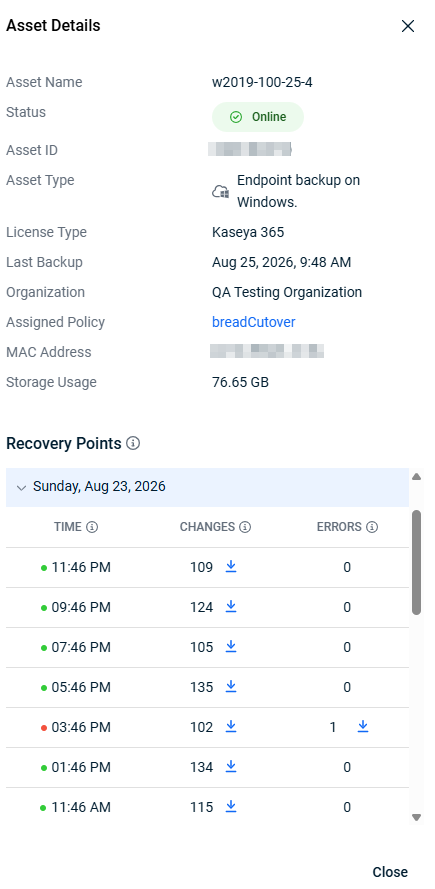
The top of the panel lists identifying and status information for the selected asset.
| Field | Description |
|---|---|
| Asset Name | The name of the protected asset. |
| Status | The current connection status of the asset, shown as a labeled badge (for example, Offline). |
| Asset ID | The unique identifier assigned to the asset. |
| Asset Type | The kind of backup protecting the asset and its operating system (for example, Endpoint backup on Windows). |
| License Type | The Kaseya license that covers the asset (for example, Kaseya 365). |
| Last Backup | The date and time of the asset's most recent backup. A dash (-) indicates that no backup has completed for the asset. |
| Organization | The organization that the asset belongs to. |
| Assigned Policy | The backup policy applied to the asset. Click the policy name to open the assigned policy. |
| MAC Address | The MAC address of the asset's network adapter. |
| Storage Usage | The total amount of backup storage consumed by the asset. |
Recovery points
The Recovery Points section lists the asset's available recovery points grouped by the date they were created.
Click a date to expand or collapse the recovery points captured on that day.
Each recovery point row shows a color-coded status indicator, described in Backup success levels, as well as the values described below.
NOTE If the asset is protected with a self-managed encryption key, you must provide that key before you can download changes or errors for its recovery points.
| Column | Description |
|---|---|
| Date | The day on which the recovery points were created. Click the date to expand or collapse its recovery points. |
| Time | The time at which the recovery point was created. |
| Changes | The number of files that changed since the previous recovery point. When change data is available, a download icon appears next to the count so you can download the changed-file data as a Comma-separated Values (CSV) file. The CSV file lists each changed file with its full path, the type of change, and the amount of data changed. |
| Errors | The number of errors recorded during the backup. When error data is available, a download icon appears next to the count so you can download the error details as a CSV file. Working with backup errors gives help on dealing with specific error types. |
How to...
View recovery points for a date 
To view the individual recovery points captured on a given day, complete the following steps:
- In the Recovery Points section, locate the date you want to review.
- Click the date to expand it.
The recovery points for that date are listed, each with its time, change count, and error count.
Click the date again to collapse the list.
Download changed-file data for a recovery point
To download the changed-file data for a recovery point, complete the following steps:
- Expand the date that contains the recovery point.
- In the Changes column, click the download icon next to the change count.
- If the asset is protected with a self-managed encryption key, enter the key when prompted.
The changed-file data for that recovery point downloads as a CSV file named changed_files_{tenant}__{asset name}__{recovery point timestamp}.csv.
The download icon appears only for recovery points that have change data available.
Download error details for a recovery point
To download the error details for a recovery point, complete the following steps:
- Expand the date that contains the recovery point.
- In the Errors column, click the download icon next to the error count.
- If the asset is protected with a self-managed encryption key, enter the key when prompted.
The error details for that recovery point download as a CSV file named errors_{tenant}__{asset name}__{recovery point timestamp}.csv.
The download icon appears only for recovery points that have error data available.
Working with backup errors provides help on dealing with backup errors.
If the downloaded details show a VSS error code, see VSS error codes.
Close the Asset Details panel
To close the panel and return to the dashboard, do one of the following:
- Click X in the upper-right corner of the panel.
- Click Close in the lower-right corner of the panel.
FAQ
Why does the Last Backup field show a dash?
A dash (-) in the Last Backup field means no backup has completed for the asset yet.
This is expected for a newly added asset or for an asset that is currently Offline and has not yet produced a successful backup.


