Endpoint Backup v2 dashboard
Module: Endpoint Backup v2
Click Dashboard to see the Endpoint Backup v2 dashboard.
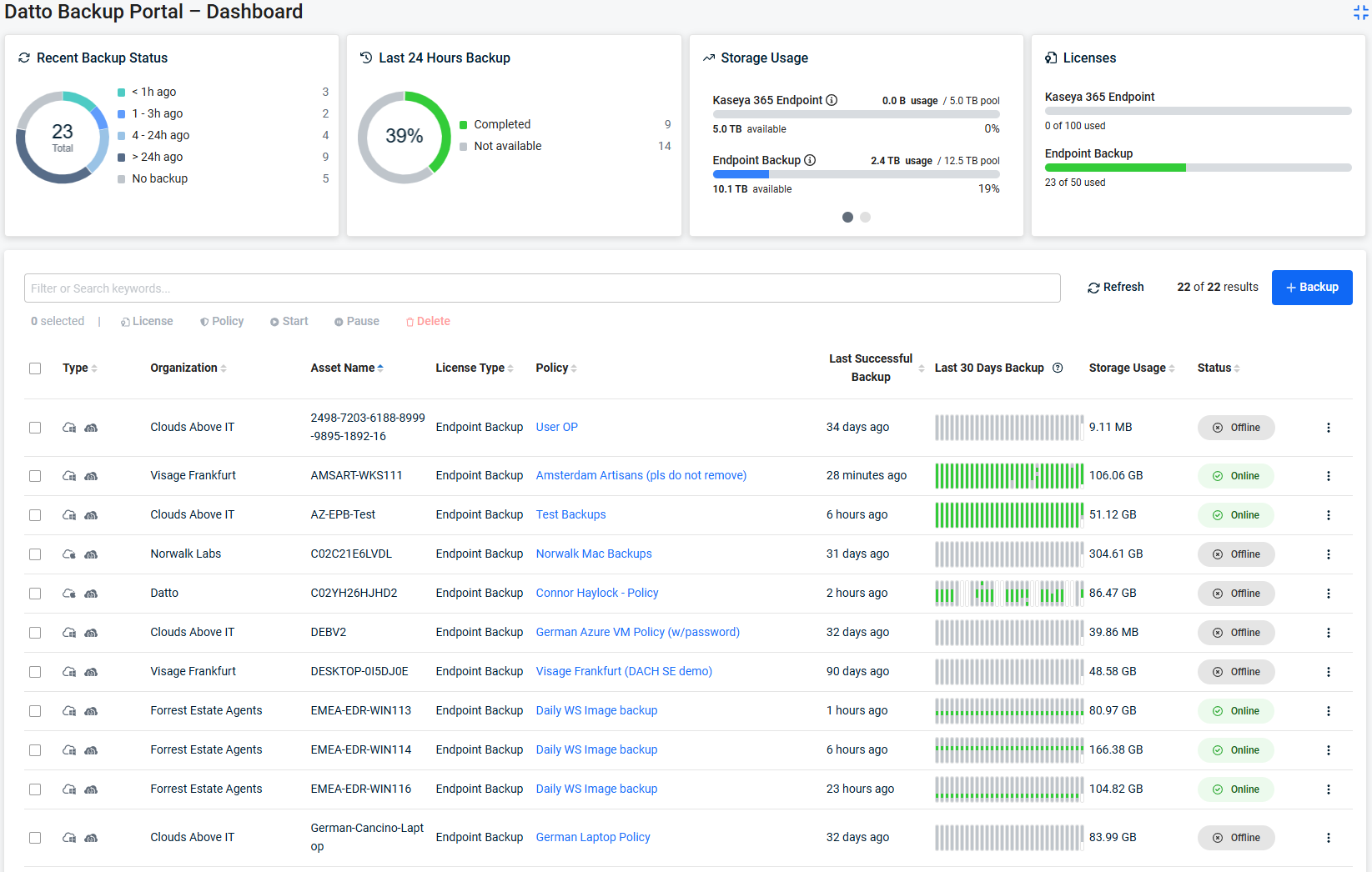
Summary tiles 
The top of the dashboard shows four summary tiles that show backup health, storage consumption, and license use across organizations.
Recent Backup Status 
Shows the total count of assets that have completed a backup recently, broken down by how long ago the last backup occurred.
< 1h ago - Count of assets whose last backup completed within the last hour.
1 - 3h ago - Count of assets whose last backup completed between 1 and 3 hours ago.
4 - 24h ago - Count of assets whose last backup completed between 4 and 24 hours ago.
> 24h ago - Count of assets whose last backup completed longer than 24 hours ago.
No Backup - Count of assets that have never completed a successful backup.
Last 24 Hours Backup
This chart shows counts of successful, partially successful, failed, and missed backups using color-coded indicators.
NOTE The number in the center of the circle is the percentage of backups that were successful or partially successful.
| Status | Color | Description |
|---|---|---|
| Successful | Green | 85% or more of the files were backed up. |
| Partially successful | Amber | Fewer than 85% of the files were backed up. The backup is usable, but some files are missing. Read Working with backup errors for more help. |
| Degraded | Red |
Volume Shadow Copy Service (VSS) failed during the backup. NOTE A degraded backup does not count as a successful backup in BackupIQ health calculations. |
| Missed, Offline, or No backup scheduled | Gray | No backup ran during the period. The endpoint was offline, the backup was missed, or no schedule applies. |
Storage Usage
Shows current storage consumption broken down by license type, with a progress bar indicating how much of the allocated storage is in use.
NOTE Use this tile to monitor storage growth and identify when additional capacity may be needed.
License type label - The name of the license tier (for example, Kaseya 365 Endpoint).
Usage / Total - The amount of storage currently used compared to the total allocated capacity for that license tier.
Progress bar - A visual indicator of storage utilization. The bar fills as storage usage increases relative to the allocated capacity.
Licenses
Shows license consumption broken down by license type.
Use this tile to monitor license usage and make sure you have enough licenses for your protected assets.
License type label - The name of the license tier.
Used / Total - The number of licenses currently assigned to assets compared to the total number of licenses available.
NOTE License tiers highlighted in orange are approaching or have reached their license limit. Contact your account manager to add licenses.
Dashboard controls
The controls in the upper-right corner of the dashboard let you refresh data and initiate new backup jobs.
Refresh - Reloads the dashboard data to show the most current backup status, storage figures, and asset information.
Use this after making changes or to check on in-progress backups.
+ Backup - Opens the workflow to on-board a new tenant.
Dashboard actions
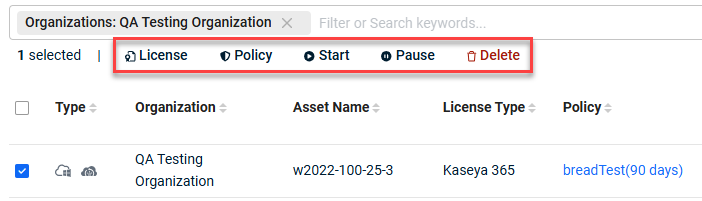
Select one or more assets in the asset table to display the actions bar above the table.
The bar shows how many assets are currently selected, and each action applies to all of them.
To choose the assets you want to work with, do one of the following:
- Select the check box at the left of each asset row that you want to include.
- Select the check box in the table header to select every asset in the filtered view.
NOTE Filtering the table does not clear your selection.
Confirm the selected count before you run an action.
License - Change the license type assigned to the selected assets.
The License Type column reflects the change.
Policy - Assign a different backup policy to the selected assets.
The policy determines their backup schedule and retention settings, and the Policy column reflects the change.
Start - Start a backup for the selected assets without waiting for the next scheduled run.
Pause - Suspend scheduled backups for the selected assets.
Paused assets stay in the table and keep their existing recovery points, but no new backups run until you start them again.
Delete - Remove the selected assets from the portal.
NOTE Hover over any action button to display a tooltip describing what it does.
How to change the license for an asset
To change the license type assigned to one or more assets, complete the following steps:
- In the asset table, select the check box for each asset that you want to change.
- Click License in the actions bar.
- Select the license type that you want to assign.
- Click Confirm.
The License Type column shows the new license for each asset you selected.
How to change the policy for an asset
To assign a different backup policy to one or more assets, complete the following steps:
- In the asset table, select the check box for each asset that you want to change.
- Click Policy in the actions bar.
- Select the backup policy that you want to assign.
Use the search box to find policies quickly. - Click Confirm.
The Policy column shows the new policy for each asset you selected.
The policy you assign determines the backup schedule and retention settings for those assets.
How to pause an asset
Pause an asset when you want to stop its scheduled backups without removing it from the portal.
To pause one or more assets, complete the following steps:
- In the asset table, select the check box for each asset that you want to pause.
- Click Pause in the actions bar.
- Click Confirm.
Scheduled backups stop for the assets you selected.
The assets remain in the table and keep their existing recovery points, but no new backups run until you start them again.
How to start a paused asset
To resume scheduled backups for one or more paused assets, complete the following steps:
- In the asset table, select the check box for each paused asset that you want to start.
- Click Start in the actions bar.
- Click Confirm.
Scheduled backups resume for the assets you selected, following the schedule in their assigned policy.
How to delete an asset
To remove one or more assets from the portal, complete the following steps:
- In the asset table, select the check box for each asset that you want to remove.
- Click Delete in the actions bar.
- Review the assets listed in the confirmation dialog, then confirm the deletion.
- Click Remove.
The assets you selected no longer appear in the asset table.
IMPORTANT Check the selected count before you delete.
Filtering the table does not clear your selection, so the assets you are about to remove may not all be visible.
Asset table
The asset table lists all protected assets and their current backup status.
You can filter, sort, and take action on assets from this table.
Search and filter
Enter text in the Filters field to filter the view.
Matching is partial and case-insensitive.
Keyword text is matched against these columns:
- Organization
- Asset Name
- License Type
- Policy
NOTE Keyword text is not matched against any other column.
To filter by asset type, use the Type selector instead.
Click in the Filters text field to see the Organizations and Type selectors.
Organizations - Filter the table to show only assets belonging to the organization you choose.
Type - Filter the table to show only assets of the type you choose.
This selector is an exact match against the Type column.
Keyword text and the selectors combine with AND.
An asset displays only if it matches every active filter.
Results count - Displays the number of assets currently shown in the table relative to the total number of assets matching the active filters.
To clear the applied filter, click X at the right edge of the Filters field.
Sort
To change the sort order of the display, click any column heading.
Click again to reverse the sort order.
Table columns
Type - An icon that shows the operating system of the protected asset (Windows or macOS).
Organization - The client organization that owns the asset.
Asset Name - The host name of the protected device. Hover over the asset name for more detail.
License Type - The backup license tier assigned to this asset.
Policy - The backup policy applied to this asset, which determines the backup schedule and retention settings.
Last Successful Backup - The date and time of the most recent backup that completed without errors.
Last 30 Backups - A miniature bar chart showing backup outcomes.
IMPORTANT We are working to apply the new backup statuses to backups taken before August 17.
Until that work is complete, disregard those historical status colors.
Hover over bars to reveal more information.
Click bars for Endpoint Backup v2 assets to reveal the Asset Details view.
Each backup attempt is assigned a health color based on the outcome.
The color reflects the proportion of files that were processed successfully during the backup.
| Status | Color | Description |
|---|---|---|
| Successful | Green | 85% or more of the files were backed up. |
| Partially successful | Amber | Fewer than 85% of the files were backed up. The backup is usable, but some files are missing. Read Working with backup errors for more help. |
| Degraded | Red |
Volume Shadow Copy Service (VSS) failed during the backup. NOTE A degraded backup does not count as a successful backup in BackupIQ health calculations. |
| Missed, Offline, or No backup scheduled | Gray | No backup ran during the period. The endpoint was offline, the backup was missed, or no schedule applies. |
Storage Usage - The total amount of storage consumed by this asset's backup data.
Status - Indicates whether the backup agent on the asset is currently connected to the service.
Online means the agent is communicating normally.
Offline means the agent has not checked in and backups may not be running.
The 3-dot action menu leads to Restore and Logs Access.


