Datto Endpoint Backup v2 macOS Agent
The Datto Endpoint Backup v2 macOS agent enables file-level backups of supported macOS systems.
System requirements
macOS version 
Datto supports the Datto Endpoint Backup v2 macOS agent as shown:
| macOS version | Intel(x64) | Apple Silicon (ARM) |
|---|---|---|
| macOS Golden Gate (27.x) | Not supported by Apple | Tested and supported |
| macOS Tahoe (26.x) | Tested and supported | Tested and supported |
| macOS Sequoia (15.x) | Tested and supported | Tested and supported |
| macOS Sonoma (14.x) | Not tested, might work, not supported | Not tested, might work, not supported |
| macOS Ventura (13.5 +) | Not tested, might work, not supported | Not tested, might work, not supported |
| macOS Ventura (13.4 -) | Will not work | Will not work |
Hardware
The Datto Endpoint Backup v2 macOS agent requires genuine Apple hardware.
Disk permissions
The Datto Endpoint Backup v2 macOS agent must be granted Full Disk Access permission.
NOTE You can tell if Full Disk Access is not allowed because the macOS agent icon in the system tray will be in yellow.
Disk space
Each protected volume must maintain free space of 10% of total volume size or 3 GB, whichever is smaller.
Anti-virus
Make sure that your anti-virus solution accepts the Datto Endpoint Backup v2 macOS agent.
Customer-managed encryption
Client-managed encryption keys are supported through manual installation only.
- Not available through mass deployment methods (MDM or CLI).
- Customers must use the manual installation process with UI to configure custom encryption keys.
Limitations
- Restores can only be performed to native Apple hardware.
- Virtualization is not supported due to licensing limitations.
- File-level restores may not preserve permissions when using APFS (Apple File System).
- Fusion Drive is not supported.
- RAID configurations are not supported.
Installing the agent directly
To install the Datto Endpoint Backup v2 macOS agent directly on a single machine, use the following steps:
- Log in to login.backup.net.
- Select Endpoint Backup > Select Deployment Tokens.
- Download the agent from within UniView by clicking on the "Deployment Tokens" section, then "Download Agent".
Alternatively, download the agent installer package from here.https://cf-dl.datto.com/dba/DattoBackupAgentInstaller-universal.pkg - Double-click the downloaded .pkg file.
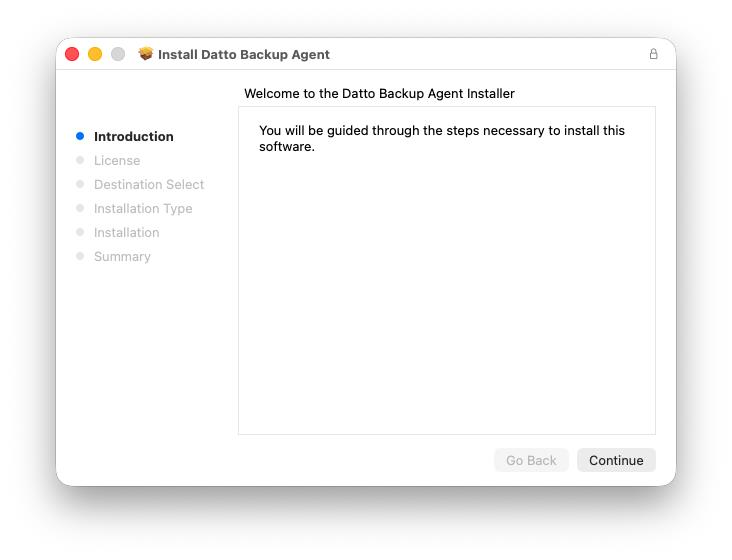
- Click Continue to see the terms of the License.
The installer will set the installation destination.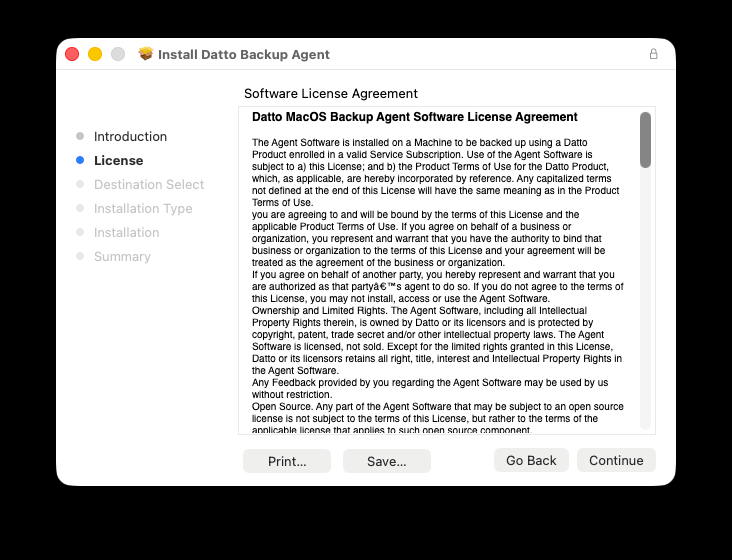
- Click Agree to accept the terms of the license.
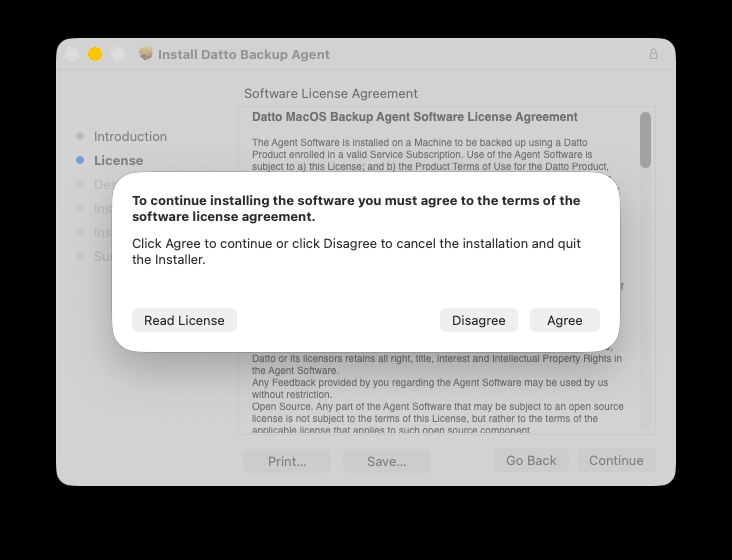
- Provide your password when the installation prompts for it.
- Choose any option when you see Datto Backup Agent Installer to setup an encryption key.
- Provide your password again when prompted to store the encryption key in your Apple Keychain.
- Click the Open System Settings button to assign Full Disk Access to the Datto Backup Agent.
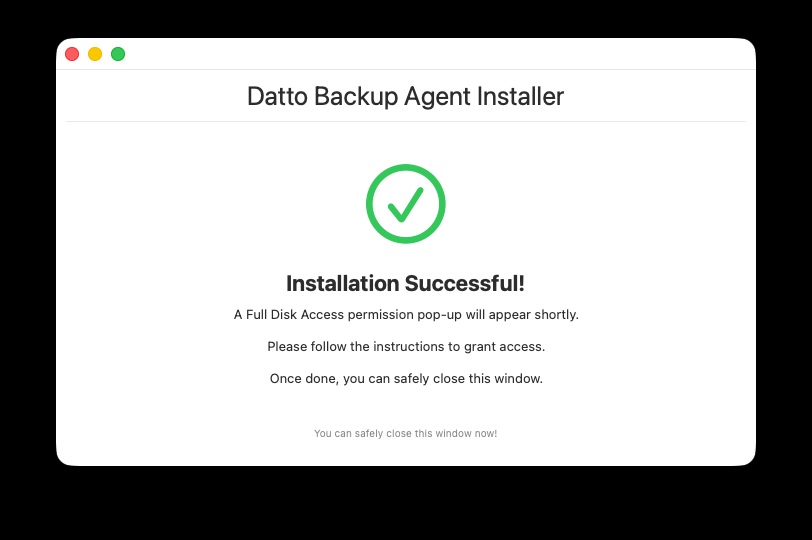
Installing the agent with Datto Remote Monitoring and Management (DRMM)
IT administrators can deploy the Datto Endpoint Backup v2 macOS agent on devices using Datto RMM with automatic Full Disk Access permissions.
Prerequisites
- Datto RMM
- Datto Endpoint Backup v2 macOS agent .pkg installer
Deployment steps
Use these steps to download the installation package, retrieve the deployment token and configure the deployment:
- Log in to login.backup.net.
- Create a policy for your macOS agent.
- Select Endpoint Backup > Select Deployment Tokens.
- Create a deployment token with your new policy.
- Copy the deployment token to use later in this procedure.
- Download the agent from within UniView by clicking on the "Deployment Tokens" section, then "Download Agent".
Alternatively, download the agent installer package from here.https://cf-dl.datto.com/dba/DattoBackupAgentInstaller-universal.pkg - Log into Datto RMM.
- Navigate to Automation > ComStore.
- Search for "Datto Endpoint Backup v2 [MAC]".
- Add Datto Endpoint Backup v2 [MAC] to the Component Library.
- Create a new job, or use an existing job, to deploy the component to your target macOS machines.
- Configure the following job variables:
- Run the job on the target macOS machines.
For more information on how to set up jobs in Datto RMM, read: Quick jobs.
Installing the agent with a Mobile Device Management (MDM) tool
IT administrators can deploy the Datto Endpoint Backup v2 macOS agent on devices using Apple MDM with automatic Full Disk Access permissions configured through Privacy Preferences Policy Control (PPPC).
Prerequisites
- Apple MDM solution (Jamf Pro, Mosyle, Kandji, etc.)
- Datto Endpoint Backup v2 macOS agent .pkg installer
Deployment steps
Use these steps to download the installation package, retrieve the deployment token and configure the deployment:
- Log in to login.backup.net.
- Select Endpoint Backup > Select Deployment Tokens.
- Copy the deployment token needed for the installation.
This is needed later on. - Download the agent from within UniView by clicking on the "Deployment Tokens" section, then "Download Agent".
Alternatively, download the agent installer package from here.https://cf-dl.datto.com/dba/DattoBackupAgentInstaller-universal.pkg
- Upload package to MDM.
Upload the Datto Endpoint Backup v2 macOS agent .pkg installer to your MDM solution's package repository or use a direct link.
- Configure the PPPC profile.
A sample configuration is included as an appendix.
- To automatically register agents with your Endpoint Backup Deployment account, include the deployment token in PPPC file.
- Configure your deployment token.
- Create a new policy in your MDM.
- Add the Datto Endpoint Backup package.
- Set the scope to target devices and groups.
- Set a trigger (enrollment, check-in, or manual).
Deployment verification
After deployment, verify:
- The Datto Backup Agent appears in
/Applications. - The macOS agent is registered with your Datto account.
- The initial backup begins automatically.
FileVault backup
Requirements:
- The disk must be unlocked for backup to proceed.
- Requires at least one user to be logged in.
- Backup cannot occur while disk is locked or before user login.
Status matrix
|
State |
Disk Status |
Backup Possible |
Notes |
|
User Logged In |
Unlocked |
✅ Yes |
Password entry at login decrypts the disk. FileVault transparently decrypts data as backup software reads it. |
|
User Logged Out |
Unlocked |
✅ Yes |
System volume remains unlocked on modern macOS. Backup daemon runs as system-level service, independent of user session, and continues accessing data at login screen. |
|
Screen Locked |
Unlocked |
✅ Yes |
User session remains active (all processes continue running). Volume stays unlocked and backup proceeds seamlessly. |
|
Sleep Mode (AC Power) |
Unlocked |
✅ Likely |
The disk remains unlocked. Mac may use Power Nap to wake periodically for system maintenance tasks, including backups. |
|
Shut Down / Restart |
Locked |
❌ No |
FileVault protection fully engaged. Data is inaccessible until the user enters the password at the login screen. Once logged in, the system will initialize and backup will resume. |
Read Uninstalling the Endpoint Backup v2 macOS agent for details about uninstalling the agent.
For Windows, see Deploying backup agents.
Selective inclusion and exclusion
Overview
With selective backups, you define custom inclusions and exclusions for folder paths or volumes you choose, so that all of your selected data, and only your selected data, is backed up.
The macOS agent supports the same inclusion and exclusion logic as the Windows agent:
- File-level exclusions: Supported
- Path-based exclusions: Supported
NOTE Inclusions and exclusions are case-sensitive on macOS.
Defaults
When no inclusions or exclusions are configured, the macOS agent will:
- Back up all supported internal volumes
The entire Macintosh HD volume is protected by default - Backup scope is system-wide, not per-user, so all users on the machine are included by default.
Inclusion restricts backups
If no inclusions are set, all supported, non-excluded volumes are backed up.
IMPORTANT If any inclusions are set, those specified inclusions are the only data backed up.
Inclusion restriction example
If you define an inclusion for: /Users/datto/Documents, then only that one folder is backed up.
Everything else on all other volumes is excluded.
Wildcards
Use the following wildcards to define your backup policy:
? - A non-recursive wildcard that represents exactly one character.
* - A non-recursive wildcard that represents zero or more characters.
** - A recursive wildcard that substitutes for path segments.
** cannot be combined with other symbols (/Logs/**.log functions like a simple *).
Exclusion takes precedence
When applying rules to selective backups, exclusions take precedence over inclusions.
If an exclusion is set, the specified path is excluded from the backup, regardless of inclusions.
Selective backup examples
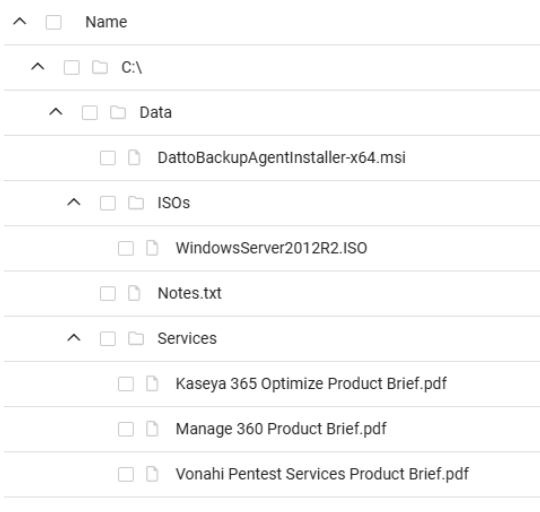
 Whole directory exclusion
Using the exclusion /Data/ prevents all data in the /Data directory, as well as in its sub-directories, from being backed up. The /Data directory appears, but does not contain any data as shown below.
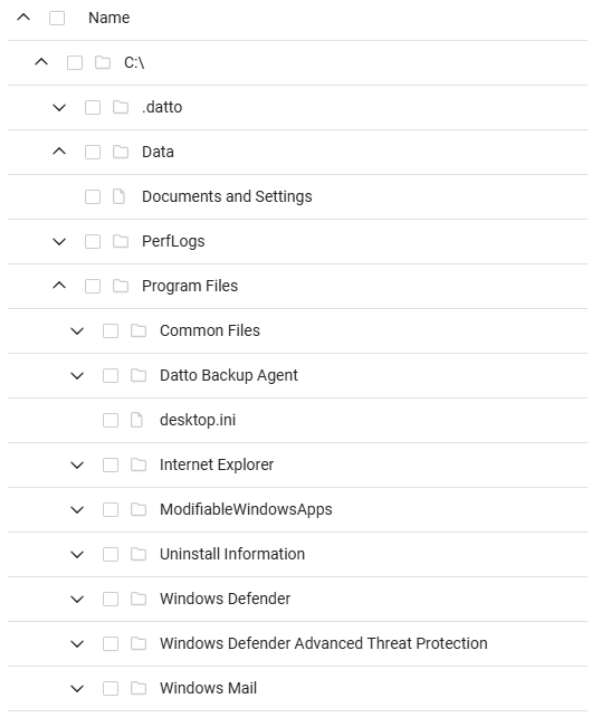
NOTE Using /Data/** achieves the same result, but may increase processing time.
File extension inclusion
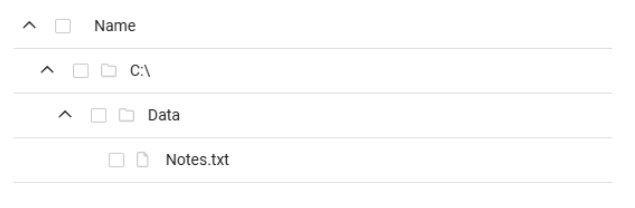
Using the inclusion /Data/*.txt backs up all text files in the /Data directory, but does not back up text files in its sub-directories as shown below because inclusion restricts backups.
Inclusion and exclusion
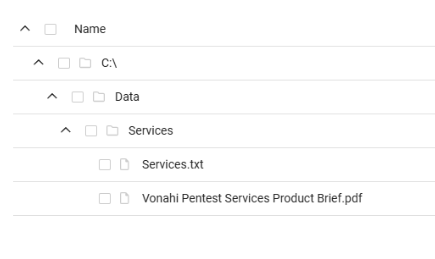
Using the inclusion /Data and the exclusion /Data/*.txt backs up all files in the /Data directory, except for the text files. This exclusion applies only to files directly in /Data and does not affect sub-directories.
The text files within sub-directories (/Data/Services) are backed up as shown below.
Also, this inclusion restricts all backups outside the inclusion because inclusion restricts backups.
Sub-directory inclusion
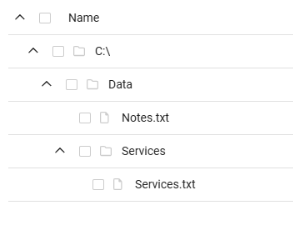
Using the inclusion /Data/**/*.txt backs up all text files in the /Data directory and all text files in its sub-directories.
Also, this inclusion restricts all backups outside the inclusion because inclusion restricts backups.
Sub-directory inclusion (version 2)
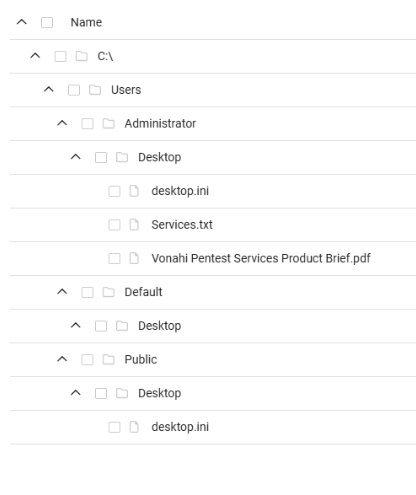
Using the inclusion /Users/*/Desktop backs up all user data under their desktop folder, but no other data because inclusion restricts backups.
Multiple sub-directory inclusion
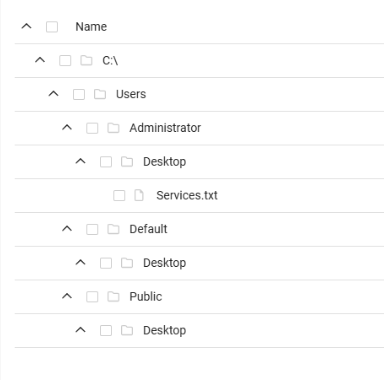
Using the inclusion /Users/*/Desktop/**/*.txt backs up all text files under each users' Desktop folder, but no other data because inclusion restricts backups.
Multiple sub-directory inclusion and exclusion
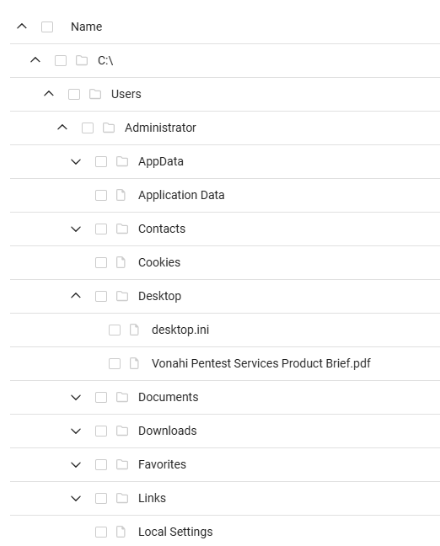
Using the inclusion /Users and the exclusion /Users/*/Desktop/**/*.txt backs up all files in the /Users directory and its sub-directories, except for text files in the desktop folder for each user, but no other data because inclusion restricts backups.
Multi-volume inclusion
Using the inclusion /Volumes/*/Data backs up all Data directories on every volume, but no other data because inclusion restricts backups.
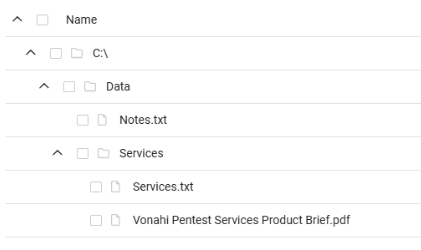
File-type inclusion
Using the inclusion /**/*.txt backs up all .txt files on every volume, but no other data because inclusion restricts backups.
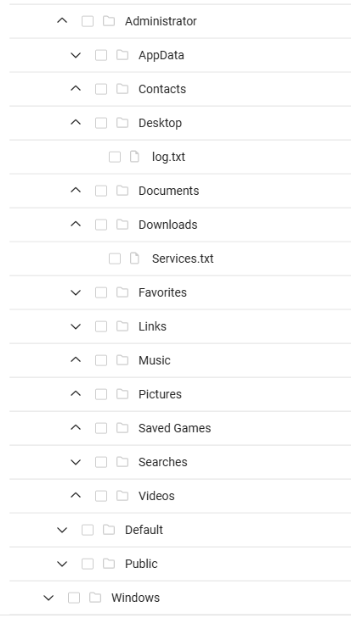
? wildcard
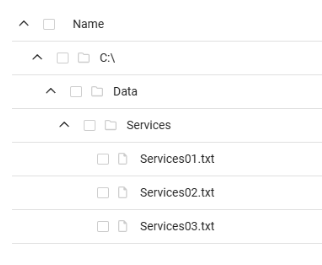
Using the inclusion /Volumes/*/Data/Services/Services??.txt backs up all text files located in the Services sub-directory inside the Data directories across all volumes, but no other data because inclusion restricts backups.
The files must start with "Services", followed by exactly two characters.
It does not matter what the two characters are.
More examples
"/var/log/**" matches all files in /var/log and all files in all child directories, recursively.
"/var/log/*.log" matches all .log files in /var/log
"/var/log/**/*.log" matches all .log files in /var/log and all files in all child directories, recursively.
"/Users/*/Library/Application Support" matches the Roaming or Library/Application Support folder for all users.
"/Users/*/Documents/**/*.txt" matches all .txt files in all sub-directories of all users' Documents folders.
Troubleshooting the macOS agent
If the protected asset does not appear in UniView, take the following steps:
- Verify deployment token configuration.
- Check network connectivity.
- Review
/Library/Application Support/Datto Backup Agent/*.log
If Full Disk Access is not granted, the macOS icon in the system tray will be in yellow.
If that happens, take the following steps:
- Restart the device after profile installation.
- Review the PPPC file to make sure it contains “
SystemPolicyAllFiles” in “Services”.
If package installation fails, take these steps:
- Check the MDM logs for installation errors.
- Ensure minimum macOS version requirements are met.
Support
Submit a Kaseya Helpdesk request for help with the macOS agent.
For MDM-specific deployment questions, contact your MDM vendor.
Appendix: Sample PPPC file
Sample PPPC configuration file
<?xml version="1.0" encoding="UTF-8"?>
<!DOCTYPE plist PUBLIC "-//Apple//DTD PLIST 1.0//EN" "http://www.apple.com/DTDs/PropertyList-1.0.dtd">
<plist version="1.0">
<dict>
<key>PayloadContent</key>
<array>
<dict>
<key>PayloadType</key>
<string>com.apple.ManagedClient.preferences</string>
<key>PayloadVersion</key>
<integer>1</integer>
<key>PayloadIdentifier</key>
<string>com.datto.backup.agent.config</string>
<key>PayloadUUID</key>
<string>F6A8D6C1-1234-5678-ABCD-1234567890AB</string>
<key>PayloadDisplayName</key>
<string>Datto Backup Agent Installer</string>
<key>PayloadOrganization</key>
<string>Datto Backup Agent</string>
<key>PayloadContent</key>
<dict>
<key>com.datto.backup.agent</key>
<dict>
<key>Forced</key>
<array>
<dict>
<key>mcx_preference_settings</key>
<dict>
<key>reg-token</key>
<string>{YOUR_DEPLOYMENT_TOKEN}</string>
</dict>
</dict>
</array>
</dict>
</dict>
</dict>
<dict>
<key>PayloadType</key>
<string>com.apple.TCC.configuration-profile-policy</string>
<key>PayloadVersion</key>
<integer>1</integer>
<key>PayloadIdentifier</key>
<string>com.datto.backup.agent.full-disk-access</string>
<key>PayloadUUID</key>
<string>F6A8D6C1-ABCD-5678-1234-1234567890AB</string>
<key>PayloadDisplayName</key>
<string>Datto Backup Agent Full Disk Access</string>
<key>PayloadOrganization</key>
<string>Datto Backup Agent</string>
<key>Services</key>
<dict>
<key>SystemPolicyAllFiles</key>
<array>
<dict>
<key>IdentifierType</key>
<string>bundleID</string>
<key>Identifier</key>
<string>com.datto.backup.app</string>
<key>Authorization</key>
<string>Allow</string>
<key>CodeRequirement</key>
<string>anchor apple generic and identifier "com.datto.backup.app" and (certificate leaf[field.1.2.840.113635.100.6.1.9] /* exists */ or certificate 1[field.1.2.840.113635.100.6.2.6] /* exists */ and certificate leaf[field.1.2.840.113635.100.6.1.13] /* exists */ and certificate leaf[subject.OU] = "8BT2X8Q49P")</string>
</dict>
</array>
</dict>
</dict>
</array>
<key>PayloadScope</key>
<string>System</string>
<key>PayloadType</key>
<string>Configuration</string>
<key>PayloadVersion</key>
<integer>1</integer>
<key>PayloadIdentifier</key>
<string>com.datto.backup.agent</string>
<key>PayloadUUID</key>
<string>F6A8D6C1-5678-1234-ABCD-1234567890AB</string>
<key>PayloadDisplayName</key>
<string>Datto Backup Agent</string>
<key>PayloadDescription</key>
<string>Profile for install config and Full Disk Access entitlement</string>
<key>PayloadOrganization</key>
<string>Datto Backup Agent</string>
</dict>
</plist>


