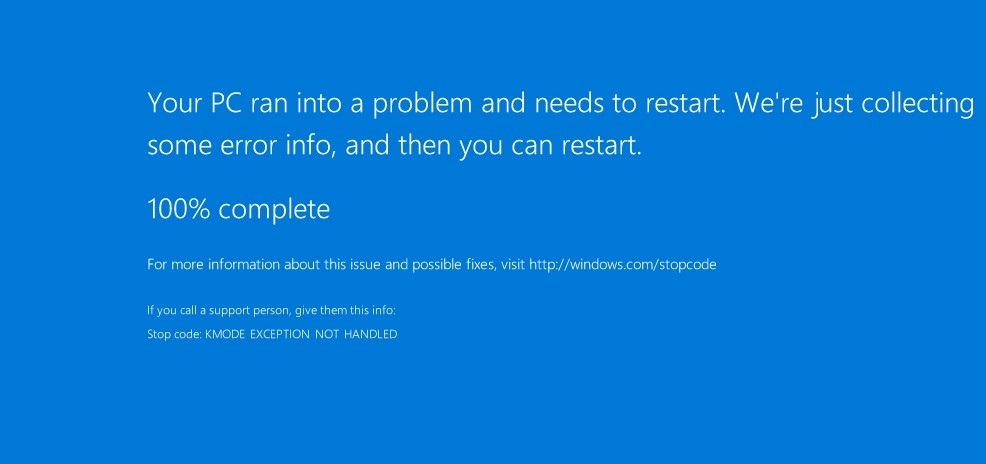
Screenshot Verification failure: KMODE EXCEPTION NOT HANDLED
Troubleshooting information for a screenshot verification failure with the error message:
KMODE EXCEPTION NOT HANDLED
Environment 
- Datto SIRIS
- Datto ALTO
Cause
The most common cause of this failure is when the backups of a legacy Windows system have the virtualization environment setting configured to use the Modern Virtualization Environment. This is the default and is expected to work with all of the current Windows OS versions. This setting may need to be adjusted for legacy systems that are still backed up to the Datto device.
Resolution
In the Configure Agent or System Settings page of the agent that is failing the screenshot verification, navigate to Virtualization Core Components, and select Legacy Virtualization Environment. Re-run the screenshot verification process on the previous backup point. 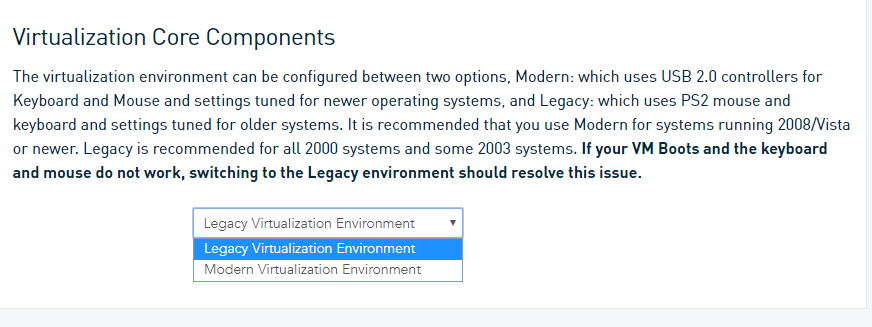
Additional Troubleshooting
In cases where adjusting the virtualization environment does not allow for a proper boot the following additional troubleshooting may be done to confirm the protected machine is in a healthy state.
Confirm the System Volume on the protected machine has at least 10-15% free space.
Make sure that all available Windows Updates have been applied to the protected server in question. This includes any important updates and updates related to .NET Framework and any C++ Redistributable packages found under optional updates.
Perform an SFC /scannow on the protected machine to verify system health. If this fails to repair the system, DISM can also be required.
DISM /Online /Cleanup-Image /RestoreHealth
When DISM is run, it is considered best practice to run the SFC scan again immediately after.
Check the Device Manager on the protected machine for any faulted drivers and address as necessary. If there are any recently added drivers, they may need to be removed if no faulted drivers are present and the virtualization issue fits the same timeframe.
Individual startup services can be disabled one at a time, with a test backup and screenshot between each to identify what is causing the issue. From there the health of that service can be addressed if it is needed.
If these have not resolved the issue you can attempt to re-install .NET.


