Azure tenant onboarding
Datto Backup for Microsoft Azure protects assets by adding the Azure tenant for protection.
Environment 
- Datto Backup for Microsoft Azure: Azure Files
- Datto Backup for Microsoft Azure: Azure Blob Storage
Description
The onboarding wizard of a new Azure tenant may be stopped and resumed at any time. If interrupted, the system saves it as a draft; resume it from the Microsoft Azure – Tenants page.
Product-Created Artifacts in the Customer Azure Tenant 
During onboarding, the product creates several artifacts in the customer’s Microsoft Azure tenant to enable access to and management of protected resources.
 Artifacts Created
The following product-related artifacts are created in the customer’s Azure environment:
Enterprise Application
The Datto Azure Backup enterprise application is registered in the customer’s Azure tenant. It is used by the product to establish its identity and access the customer’s Azure environment.
Custom Roles
The product creates the following custom roles:
-
Datto Azure 2.0 Subscription Role, created at the Azure subscription level.
-
Datto Azure 2.0 Management Group Role, created at the management group root.
Role Assignments
The product creates role assignments at the following levels:
-
Azure subscription: role assignments required to access and manage protected resources within the subscription.
-
Management group root: role assignments required to support access across the relevant Azure hierarchy.
Artifact Lifecycle
These artifacts are created during Azure tenant onboarding and remain in use while the tenant is connected to the product.
When the Azure tenant is deleted from the product portal, the associated artifacts should normally be removed as part of the deletion process. In exceptional cases, some artifacts may remain in the customer’s Azure tenant. Customers can manually remove these remaining artifacts if required for security, compliance, or other administrative reasons.
NOTE Once the tenant has been fully deleted from the product, any remaining product-created artifacts are inactive and no longer provide access to customer resources.
Adding a new tenant
-
Log into the UniView portal using your UniView or KaseyaOne credentials.
-
Follow the steps to launch the Add Tenant wizard from either page:
Dashboard
-
In the left-hand menu, navigate to the Datto Backup Portal – Dashboard.
-
If you have Datto Backup for Microsoft Azure: Azure Files & Azure Blob Storage, but not Datto Endpoint Backup v2, on the right-hand side of the asset list select + Azure Tenant.
-
If you have Datto Backup for Microsoft Azure: Azure Files & Azure Blob Storage and Datto Endpoint Backup v2, on the right-hand side of the asset list select + Backup, then + Azure Tenant from the menu.
Tenants page
-
In the left-hand menu, expand Microsoft Azure and select Tenants to open the page.
-
Select + Azure Tenant in the top right of the screen. This will open the Add Tenant wizard.
-
-
On the Sign In page of the wizard, select Sign in to Microsoft Azure. Once the pop-up appears, enter the credentials for your Microsoft Azure account and accept the agreement.
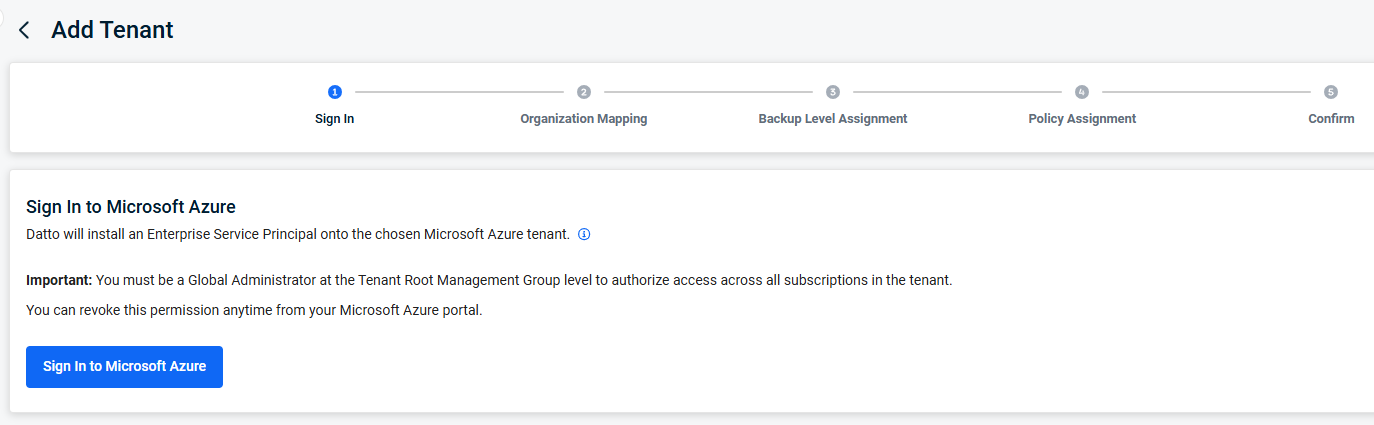
The account used to login must be a Global Administrator at the Tenant Root Management Group level to authorize access, and you will need to input these credentials twice for the different permissions. If there is a permissions or validation issue, there will be a notification detailing it in the Activity Center.
Multi-factor authentication (MFA) must also be enabled so the product can be granted the permissions it needs to protect your Azure resources. For setup instruction, see Secure user sign-in events with Microsoft Entra multifactor authentication (external link).
-
Once you are signed in, click Next to continue.
-
From the Organization Mapping page, select the organization this tenant will be added to from the drop-down menu. If the needed organization is not present, it can be imported through an enabled integration or added as a new organization. For more information on importing an organization using an integration from another product, refer to: Importing an organization .

Import
-
This option will only be available if an integration is enabled in the portal.
-
Select + Import to import the organization from the enabled integration.
New organization
-
This option will only be available if an integration is not enabled in the portal.
-
Select + New to create a new organization.
-
Fill out the Name and Group fields, then click Save.
-
-
Once the organization has been selected, click Next.
-
For each workload confirm or exclude protection using the Active Protection toggle. Currently the workloads available are Azure Files and Azure Blob Storage.
-
Select the Assignment Level for each of the Azure workloads, depending on which protection type was selected.
NOTE Azure File shares and Azure Blob containers that are located in a Storage Account configured with network rules set to deny all public access, will not be able to be backed up.
Assignment Level Description Tenant All resources of the workload in the added Azure tenant will be included for backups. In addition, every newly added resource of this workload will be included automatically. Subscription All resources of the workload in the selected Subscription(s) will be included for backups. In addition, every newly added resource of this workload, in the selected Subscription(s), will be included automatically. Resource Group All resources of the workload in the selected Resource Group(s) will be included for backups. In addition, every newly added resource of this workload, in the selected Resource Group(s), will be included automatically. Storage Account All resources of the workload in the selected Storage Account(s) will be included for backups. In addition, every newly added resource of this workload, in the selected Storage Account(s), will be included automatically. Individual Resource (File Share / Blob Container) The most granular level, each selected asset will be included for backups. Higher levels may be selected to include multiple resources at once. Any future resources that would need to be protected would need to be included manually. If selecting this level, then at least one resource must be selected for protection to proceed. For more information on Assignment Levels, exclusions, and automatic inclusion of new resources, refer to: Automatic Inclusion .
NOTE If the storage account cannot be accessed, it will display a lock icon next to the name. No resources will be displayed beneath it. For more information on accessing the storage account, refer to the Inaccessible storage account section below.
-
After selecting the assignment level and confirming the resources to protect on the Azure tenant, click Next.
-
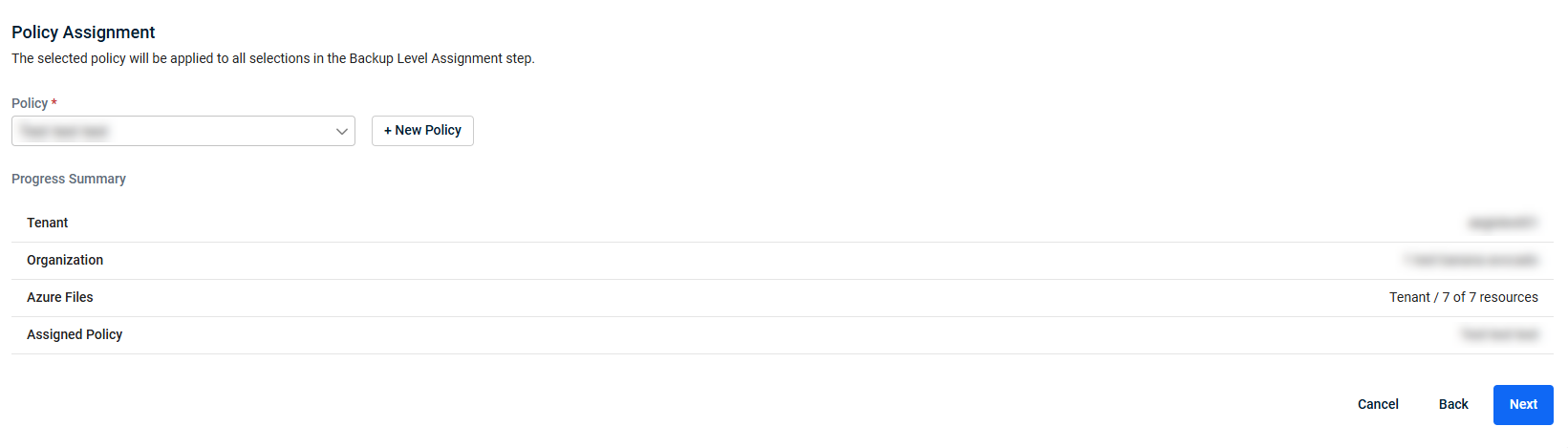
From the Policy Assignment page, select a policy from the drop-down menu to use a previously configured backup policy. This will need to be done for each protected workload. Once selected, Preview Policy can be used to view the current settings of the policy selected before confirming your choice.
If you need to create a new policy, select + New Policy to open the policy creation pane. For more information on creating a policy, refer to: Add a new policy.
-
Click Next, once the policy has been selected.
-
From the Confirm page, review all the selected options up to this point and confirm the selections. Once ready, select Confirm & Add.
Once confirmed, the draft will be saved, and the onboarding will be triggered. You will receive an Activity Center message once the onboarding process completes. The onboarding process will not take more than 45 minutes.
NOTE After the onboarding, updating Backup Level Assignment or Policy Assignment requires an Admin account or a Superuser account; updating Organization Mapping requires a Superuser account.
Resuming Azure tenant onboarding
If the onboarding was interrupted or paused, it appears as a Draft in the Status column. Select the icon in the far right of the row to Resume Onboarding.
If onboarding is resumed after the Backup Level Assignment step and the query of resources is different from what was previously available, it will be resumed from that point, regardless of where it was left off. Make the selection(s) again to confirm your choices with the updated resource list.
Resume the Azure tenant onboarding process from the step displayed to complete the onboarding.
Updating existing configurations
To adjust the configuration of a previously onboarded tenant, refer to: Protection modification.
Inaccessible storage account
When onboarding an Azure tenant if a storage account is not accessible during the Azure tenant onboarding or protection modification, the resources will not be available for protection. A lock icon will display next to the storage account's name. Hover the lock icon to display a tooltip describing the inability to access the storage account.
Public network access restricted
If the tooltip displays the following, then check the Public Network Access setting of your Storage Account.
Public network access to this storage account is restricted. Configure the required IP address exception and Virtual Network rule for your region to grant access.
If your storage account Public Network Access is set to Enabled from selected virtual networks and IP addresses, you must grant Datto Backup for Microsoft Azure access using the following steps.
-
Add a public IP exception for East US (20.120.22.130).
-
Add a Virtual Network rule for the region your storage account is in, using the Virtual Network ID from the tables below.
NOTE The Azure portal cannot be used to add a Virtual Network ID from a different tenant. Use the Azure CLI or PowerShell. For full CLI reference, see the az storage account network rule documentation.
Azure CLI:
az storage account network-rule add --resource-group <your-storage-rg> --account-name <your-storage-account> --subnet "<virtual-network-id-from-table>"
PowerShell:
Add-AzStorageAccountNetworkRule ` -ResourceGroupName <your-storage-rg> ` -Name <your storage-account> ` -VirtualNetworkResourceId "<virtual-network-id-from-table>"
Azure Region Virtual Network IDs
Americas
| Azure Region | Virtual Network ID |
|---|---|
| eastus | /subscriptions/c833c6b8-2d75-4d85-880f-e7b28f34337e/resourceGroups/prod-eastus-aegis-net-rg/providers/Microsoft.Network/virtualNetworks/prod-eastus-aegis-vnet/subnets/snet-nodes |
| eastus2 | /subscriptions/c833c6b8-2d75-4d85-880f-e7b28f34337e/resourceGroups/prod-eastus2-aegis-net-rg/providers/Microsoft.Network/virtualNetworks/prod-eastus2-aegis-vnet/subnets/snet-nodes |
| westus | /subscriptions/c833c6b8-2d75-4d85-880f-e7b28f34337e/resourceGroups/prod-westus-aegis-net-rg/providers/Microsoft.Network/virtualNetworks/prod-westus-aegis-vnet/subnets/snet-nodes |
| westus2 | /subscriptions/c833c6b8-2d75-4d85-880f-e7b28f34337e/resourceGroups/prod-westus2-aegis-net-rg/providers/Microsoft.Network/virtualNetworks/prod-westus2-aegis-vnet/subnets/snet-nodes |
| westus3 | /subscriptions/c833c6b8-2d75-4d85-880f-e7b28f34337e/resourceGroups/prod-westus3-aegis-net-rg/providers/Microsoft.Network/virtualNetworks/prod-westus3-aegis-vnet/subnets/snet-nodes |
| centralus | /subscriptions/c833c6b8-2d75-4d85-880f-e7b28f34337e/resourceGroups/prod-centralus-aegis-net-rg/providers/Microsoft.Network/virtualNetworks/prod-centralus-aegis-vnet/subnets/snet-nodes |
| southcentralus | /subscriptions/c833c6b8-2d75-4d85-880f-e7b28f34337e/resourceGroups/prod-southcentralus-aegis-net-rg/providers/Microsoft.Network/virtualNetworks/prod-southcentralus-aegis-vnet/subnets/snet-nodes |
| westcentralus | /subscriptions/c833c6b8-2d75-4d85-880f-e7b28f34337e/resourceGroups/prod-westcentralus-aegis-net-rg/providers/Microsoft.Network/virtualNetworks/prod-westcentralus-aegis-vnet/subnets/snet-nodes |
| northcentralus | /subscriptions/c833c6b8-2d75-4d85-880f-e7b28f34337e/resourceGroups/prod-northcentralus-aegis-net-rg/providers/Microsoft.Network/virtualNetworks/prod-northcentralus-aegis-vnet/subnets/snet-nodes |
| chilecentral | /subscriptions/c833c6b8-2d75-4d85-880f-e7b28f34337e/resourceGroups/prod-chilecentral-aegis-net-rg/providers/Microsoft.Network/virtualNetworks/prod-chilecentral-aegis-vnet/subnets/snet-nodes |
| brazilsouth | /subscriptions/c833c6b8-2d75-4d85-880f-e7b28f34337e/resourceGroups/prod-brazilsouth-aegis-net-rg/providers/Microsoft.Network/virtualNetworks/prod-brazilsouth-aegis-vnet/subnets/snet-nodes |
| mexicocentral | /subscriptions/c833c6b8-2d75-4d85-880f-e7b28f34337e/resourceGroups/prod-mexicocentral-aegis-net-rg/providers/Microsoft.Network/virtualNetworks/prod-mexicocentral-aegis-vnet/subnets/snet-nodes |
| canadacentral | /subscriptions/c833c6b8-2d75-4d85-880f-e7b28f34337e/resourceGroups/prod-canadacentral-aegis-net-rg/providers/Microsoft.Network/virtualNetworks/prod-canadacentral-aegis-vnet/subnets/snet-nodes |
| canadaeast | /subscriptions/c833c6b8-2d75-4d85-880f-e7b28f34337e/resourceGroups/prod-canadaeast-aegis-net-rg/providers/Microsoft.Network/virtualNetworks/prod-canadaeast-aegis-vnet/subnets/snet-nodes |
Europe
| Azure Region | Virtual Network ID |
|---|---|
| swedencentral | /subscriptions/c833c6b8-2d75-4d85-880f-e7b28f34337e/resourceGroups/prod-swedencentral-aegis-net-rg/providers/Microsoft.Network/virtualNetworks/prod-swedencentral-aegis-vnet/subnets/snet-nodes |
| belgiumcentral | /subscriptions/c833c6b8-2d75-4d85-880f-e7b28f34337e/resourceGroups/prod-belgiumcentral-aegis-net-rg/providers/Microsoft.Network/virtualNetworks/prod-belgiumcentral-aegis-vnet/subnets/snet-nodes |
| denmarkeast | /subscriptions/c833c6b8-2d75-4d85-880f-e7b28f34337e/resourceGroups/prod-denmarkeast-aegis-net-rg/providers/Microsoft.Network/virtualNetworks/prod-denmarkeast-aegis-vnet/subnets/snet-nodes |
| northeurope | /subscriptions/c833c6b8-2d75-4d85-880f-e7b28f34337e/resourceGroups/prod-northeurope-aegis-net-rg/providers/Microsoft.Network/virtualNetworks/prod-northeurope-aegis-vnet/subnets/snet-nodes |
| westeurope | /subscriptions/c833c6b8-2d75-4d85-880f-e7b28f34337e/resourceGroups/prod-westeurope-aegis-net-rg/providers/Microsoft.Network/virtualNetworks/prod-westeurope-aegis-vnet/subnets/snet-nodes |
| norwayeast | /subscriptions/c833c6b8-2d75-4d85-880f-e7b28f34337e/resourceGroups/prod-norwayeast-aegis-net-rg/providers/Microsoft.Network/virtualNetworks/prod-norwayeast-aegis-vnet/subnets/snet-nodes |
| uksouth | /subscriptions/c833c6b8-2d75-4d85-880f-e7b28f34337e/resourceGroups/prod-uksouth-aegis-net-rg/providers/Microsoft.Network/virtualNetworks/prod-uksouth-aegis-vnet/subnets/snet-nodes |
| ukwest | /subscriptions/c833c6b8-2d75-4d85-880f-e7b28f34337e/resourceGroups/prod-ukwest-aegis-net-rg/providers/Microsoft.Network/virtualNetworks/prod-ukwest-aegis-vnet/subnets/snet-nodes |
| francecentral | /subscriptions/c833c6b8-2d75-4d85-880f-e7b28f34337e/resourceGroups/prod-francecentral-aegis-net-rg/providers/Microsoft.Network/virtualNetworks/prod-francecentral-aegis-vnet/subnets/snet-nodes |
| germanywestcentral | /subscriptions/c833c6b8-2d75-4d85-880f-e7b28f34337e/resourceGroups/prod-germanywestcentral-aegis-net-rg/providers/Microsoft.Network/virtualNetworks/prod-germanywestcentral-aegis-vnet/subnets/snet-nodes |
| austriaeast | /subscriptions/c833c6b8-2d75-4d85-880f-e7b28f34337e/resourceGroups/prod-austriaeast-aegis-net-rg/providers/Microsoft.Network/virtualNetworks/prod-austriaeast-aegis-vnet/subnets/snet-nodes |
| switzerlandnorth | /subscriptions/c833c6b8-2d75-4d85-880f-e7b28f34337e/resourceGroups/prod-switzerlandnorth-aegis-net-rg/providers/Microsoft.Network/virtualNetworks/prod-switzerlandnorth-aegis-vnet/subnets/snet-nodes |
| italynorth | /subscriptions/c833c6b8-2d75-4d85-880f-e7b28f34337e/resourceGroups/prod-italynorth-aegis-net-rg/providers/Microsoft.Network/virtualNetworks/prod-italynorth-aegis-vnet/subnets/snet-nodes |
| spaincentral | /subscriptions/c833c6b8-2d75-4d85-880f-e7b28f34337e/resourceGroups/prod-spaincentral-aegis-net-rg/providers/Microsoft.Network/virtualNetworks/prod-spaincentral-aegis-vnet/subnets/snet-nodes |
| polandcentral | /subscriptions/c833c6b8-2d75-4d85-880f-e7b28f34337e/resourceGroups/prod-polandcentral-aegis-net-rg/providers/Microsoft.Network/virtualNetworks/prod-polandcentral-aegis-vnet/subnets/snet-nodes |
Middle East & Africa
| Azure Region | Proxy URL |
|---|---|
| uaenorth | /subscriptions/c833c6b8-2d75-4d85-880f-e7b28f34337e/resourceGroups/prod-uaenorth-aegis-net-rg/providers/Microsoft.Network/virtualNetworks/prod-uaenorth-aegis-vnet/subnets/snet-nodes |
| israelcentral | /subscriptions/c833c6b8-2d75-4d85-880f-e7b28f34337e/resourceGroups/prod-israelcentral-aegis-net-rg/providers/Microsoft.Network/virtualNetworks/prod-israelcentral-aegis-vnet/subnets/snet-nodes |
| southafricanorth | /subscriptions/c833c6b8-2d75-4d85-880f-e7b28f34337e/resourceGroups/prod-southafricanorth-aegis-net-rg/providers/Microsoft.Network/virtualNetworks/prod-southafricanorth-aegis-vnet/subnets/snet-nodes |
Asia Pacific
| Azure Region | Proxy URL |
|---|---|
| eastasia | /subscriptions/c833c6b8-2d75-4d85-880f-e7b28f34337e/resourceGroups/prod-eastasia-aegis-net-rg/providers/Microsoft.Network/virtualNetworks/prod-eastasia-aegis-vnet/subnets/snet-nodes |
| southeastasia | /subscriptions/c833c6b8-2d75-4d85-880f-e7b28f34337e/resourceGroups/prod-southeastasia-aegis-net-rg/providers/Microsoft.Network/virtualNetworks/prod-southeastasia-aegis-vnet/subnets/snet-nodes |
| japaneast | /subscriptions/c833c6b8-2d75-4d85-880f-e7b28f34337e/resourceGroups/prod-japaneast-aegis-net-rg/providers/Microsoft.Network/virtualNetworks/prod-japaneast-aegis-vnet/subnets/snet-nodes |
| japanwest | /subscriptions/c833c6b8-2d75-4d85-880f-e7b28f34337e/resourceGroups/prod-japanwest-aegi-net-rg/providers/Microsoft.Network/virtualNetworks/prod-japanwest-aegis-vnet/subnets/snet-nodes |
| koreacentral | /subscriptions/c833c6b8-2d75-4d85-880f-e7b28f34337e/resourceGroups/prod-koreacentral-aegis-net-rg/providers/Microsoft.Network/virtualNetworks/prod-koreacentral-aegis-vnet/subnets/snet-nodes |
| koreasouth | /subscriptions/c833c6b8-2d75-4d85-880f-e7b28f34337e/resourceGroups/prod-koreasouth-aegis-net-rg/providers/Microsoft.Network/virtualNetworks/prod-koreasouth-aegis-vnet/subnets/snet-nodes |
| malaysiawest | /subscriptions/c833c6b8-2d75-4d85-880f-e7b28f34337e/resourceGroups/prod-malaysiawest-aegis-net-rg/providers/Microsoft.Network/virtualNetworks/prod-malaysiawest-aegis-vnet/subnets/snet-nodes |
| indonesiacentral | /subscriptions/c833c6b8-2d75-4d85-880f-e7b28f34337e/resourceGroups/prod-indonesiacentral-aegis-net-rg/providers/Microsoft.Network/virtualNetworks/prod-indonesiacentral-aegis-vnet/subnets/snet-nodes |
| australiaeast | /subscriptions/c833c6b8-2d75-4d85-880f-e7b28f34337e/resourceGroups/prod-australiaeast-aegis-net-rg/providers/Microsoft.Network/virtualNetworks/prod-australiaeast-aegis-vnet/subnets/snet-nodes |
| australiasoutheast | /subscriptions/c833c6b8-2d75-4d85-880f-e7b28f34337e/resourceGroups/prod-australiasoutheast-aegis-net-rg/providers/Microsoft.Network/virtualNetworks/prod-australiasoutheast-aegis-vnet/subnets/snet-nodes |
| australiacentral | /subscriptions/c833c6b8-2d75-4d85-880f-e7b28f34337e/resourceGroups/prod-australiacentral-aegis-net-rg/providers/Microsoft.Network/virtualNetworks/prod-australiacentral-aegis-vnet/subnets/snet-nodes |
| newzealandnorth | /subscriptions/c833c6b8-2d75-4d85-880f-e7b28f34337e/resourceGroups/prod-newzealandnorth-aegis-net-rg/providers/Microsoft.Network/virtualNetworks/prod-newzealandnorth-aegis-vnet/subnets/snet-nodes |
| centralindia | /subscriptions/c833c6b8-2d75-4d85-880f-e7b28f34337e/resourceGroups/prod-centralindia-aegis-net-rg/providers/Microsoft.Network/virtualNetworks/prod-centralindia-aegis-vnet/subnets/snet-nodes |
| southindia | /subscriptions/c833c6b8-2d75-4d85-880f-e7b28f34337e/resourceGroups/prod-southindia-aegis-net-rg/providers/Microsoft.Network/virtualNetworks/prod-southindia-aegis-vnet/subnets/snet-nodes |
Additional resources
- Azure Storage firewall rules (external link)


