Backup skipped due to not enough free space (Full Device)
This article gives guidance on how to solve issues caused by not having enough space in the storage array of your Datto device. Here are some examples of errors you might see:
- "Backup skipped due to not enough free space" error
- "Local storage has less than (amount) available" alert
- Device alert saying that the device is protecting more than 50% of its storage capacity
- "Device filesystem is full" alert
- "Disk space critically low" alert
Environment 
- Datto SIRIS
- Datto ALTO
- Datto NAS
Description
In addition to triggering an alert, lack of free space most commonly will cause failed backups and prevent new agents from being protected. It can also cause issues with managing the storage post Disaster Recovery. The cause of the device filling up can be varied, including:
 Storage array is too small

To determine if your device is too small for the amount of data you need to protect, check out the article Properly Sizing a Datto Appliance. If your device is indeed too small, you can try to tighten your retention settings. A better long term solution is a storage array upgrade. To determine if an upgrade is possible for your device, contact your sales representative.
Retention settings are too loose
Ensure that retention is set and is not too loose. For a full understanding of the retention process, see the article Understanding the Retention Process.
To check your retention settings, do the following:
Connect to the Remote Web interface for the device.
Click on the Protect tab, and you will see a list of protected machines.
In the list, check the Protected Storage field for each protected machine.
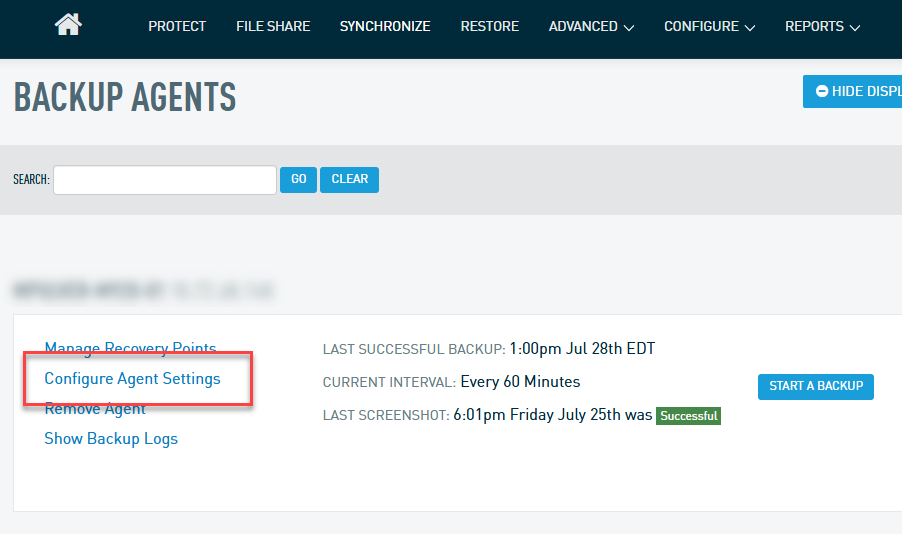
For the protected machines that are using a lot of Protected Storage, click the Configure Agent Settings link.
Click the Local Backup & Retention link on the left side menu.
Compare your retention settings to that of the default settings.
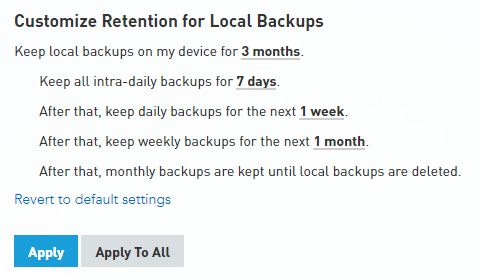
If your retention settings are too loose, adjust them for more frequent consolidation of recovery points and deletion of data. Then, you can Force Retention. If this fails to have any impact, and your device is sized properly, check to make sure that nothing is blocking the retention process. Things that can prevent data from being deleted through retention are Active Restores and the device being behind on Offsite Synchronization.
Retention settings are incorrectly configured If your retention is not running, check your Local /Cloud Backup and Retention Policy in the Remote Web interface:
Connect to the Remote Web interface for the device.
Click on the Protect tab to see all the different agents.
Under the agent that is having the issue, select Configure Agent Settings.
Review the Local Backup and Retention Policy to confirm it is accurate.
Review the Cloud Backup and Retention Policy, including the Interval and Schedule for Offsite Backups.
If the offsite schedule is set to custom, ensure that the schedule is filled in with times and days in order for the offsite data to sync.
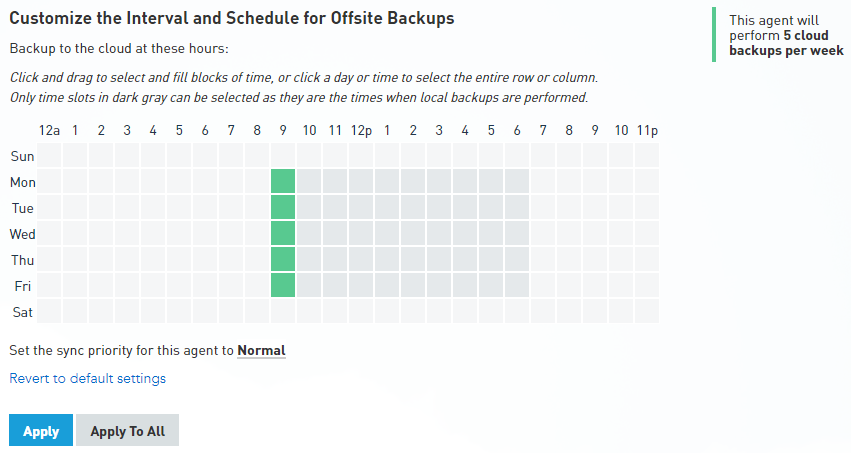
Device is behind on offsite synchronization By default, one recovery point per day is flagged to be synchronized with the Datto Cloud. Once this recovery point is flagged, it cannot be deleted by the retention process until the Cloud synchronization is successful. If this synchronization is not working, then the point cannot be deleted, and therefore the retention process stalls.
Click on the Synchronize tab. The Offsite Job Status chart can be used to determine if there is a backlog, if it is growing, and when it started. In the example below the backlog started on the 13th and began growing. 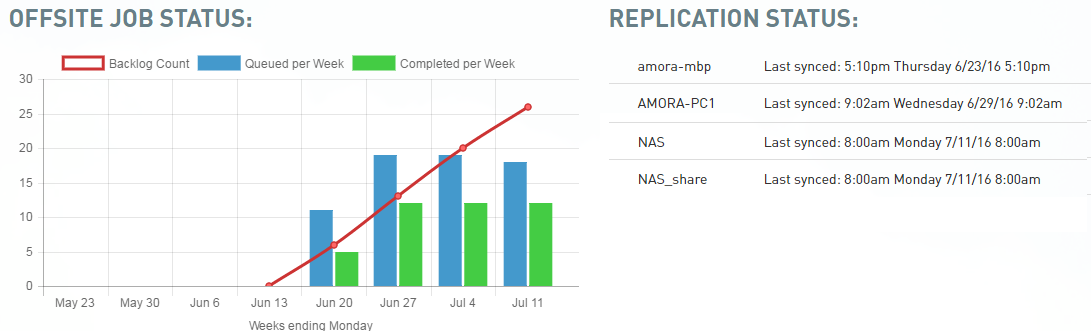
If synchronization is behind for all or most of your protected systems, you should refer to the article Off-Site Synchronization Configuration to configure your offsite synchronization settings. See the RoundTrip Overview article to determine if you need a RoundTrip to get caught up on synchronization.
Active restores
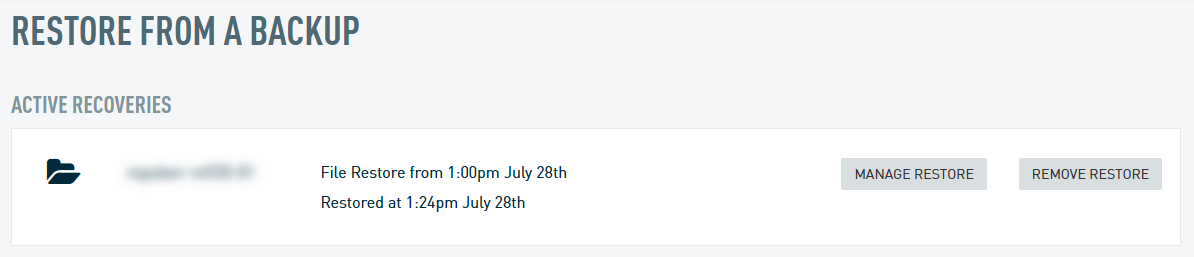
Since each active restore uses data from throughout the Inverse Chain of backups, an active restore might prevent the deletion of data through retention. To check if you have any active restores, do the following:
Connect to the Remote Web interface for the device.
Click on the Restore tab.
If you see an active recovery, investigate whether you can remove it. Keep in mind that removing an active recovery will delete data.
A software issue is causing large backups
Certain Windows applications can cause large block-level changes on the protected system. This can cause backups to be unusually large. To investigate this possibility further, see the article Explaining the Inverse Chain and Investigating Large Recovery Points.
Other Considerations Archived agents can still contribute to the used space on the device if the local data is not removed once they have been archived. Archived agents cannot have their retention settings changed, but you can manage the recovery points, like an active agent, through the Protect tab.
Orphaned datasets can be left over on the device preventing retention/removal of backups or agents. To check for left over datasets:
Connect to the Remote Web interface for the device.
Select the Advanced tab.
Select Advanced Device Status from the drop down.
Dataset Cleanup will list any orphaned datasets and give the option to remove them under the Action column.
If you need any further assistance please don't hesitate to create a ticket or call in to support.


